
Rumskrot Navigator
Your servers’ files, straight to the big screen
Navigator connects directly to any NAS or machine that speaks SMB or SFTP — no account, no relay. Folders expand in place, photos get thumbnails, names sort the way people count, and on Apple TV your photo folders become a grid with slideshows driven by the Siri Remote.
Public Beta Open to everyone on TestFlight — the latest build, before it reaches the App Store.
- Open files from the server. Photos, video, audio, PDFs and code preview in place; ZIP, RAR, 7-Zip and TAR browse without downloading.
- Real file operations. Rename, move, copy and delete on the server; copy between servers; one transfer queue with retry.
- Phone to TV in one scan. Show a code on Apple TV, scan it with your iPhone, and your saved servers arrive encrypted over the home network.
Use it when… the holiday photos are on the NAS and the family is on the sofa.
Apple TV
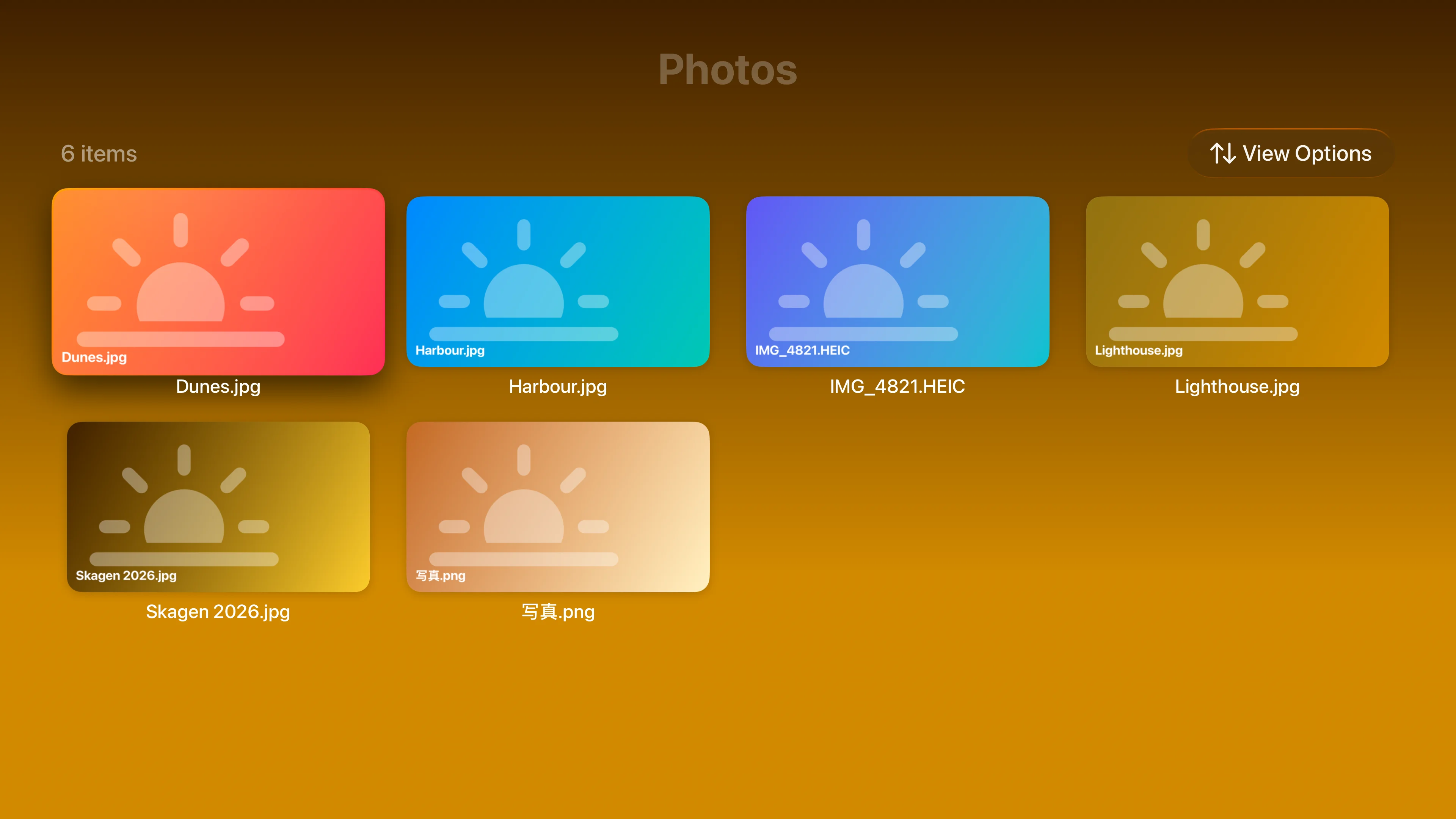
Photo Folders as a Grid
Thumbnails straight from your NAS
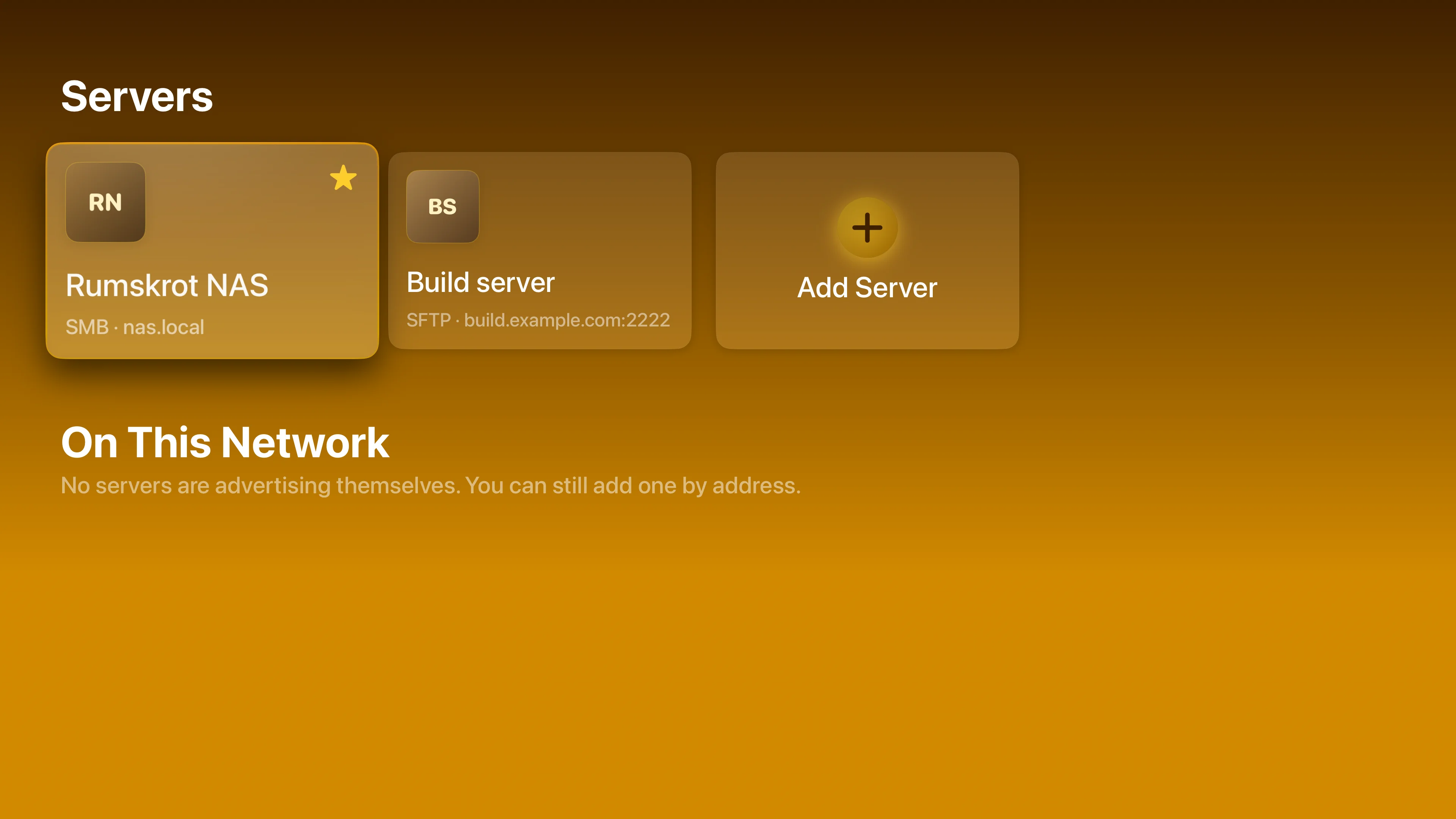
Every Server, on the Big Screen
Your saved servers, favourites starred
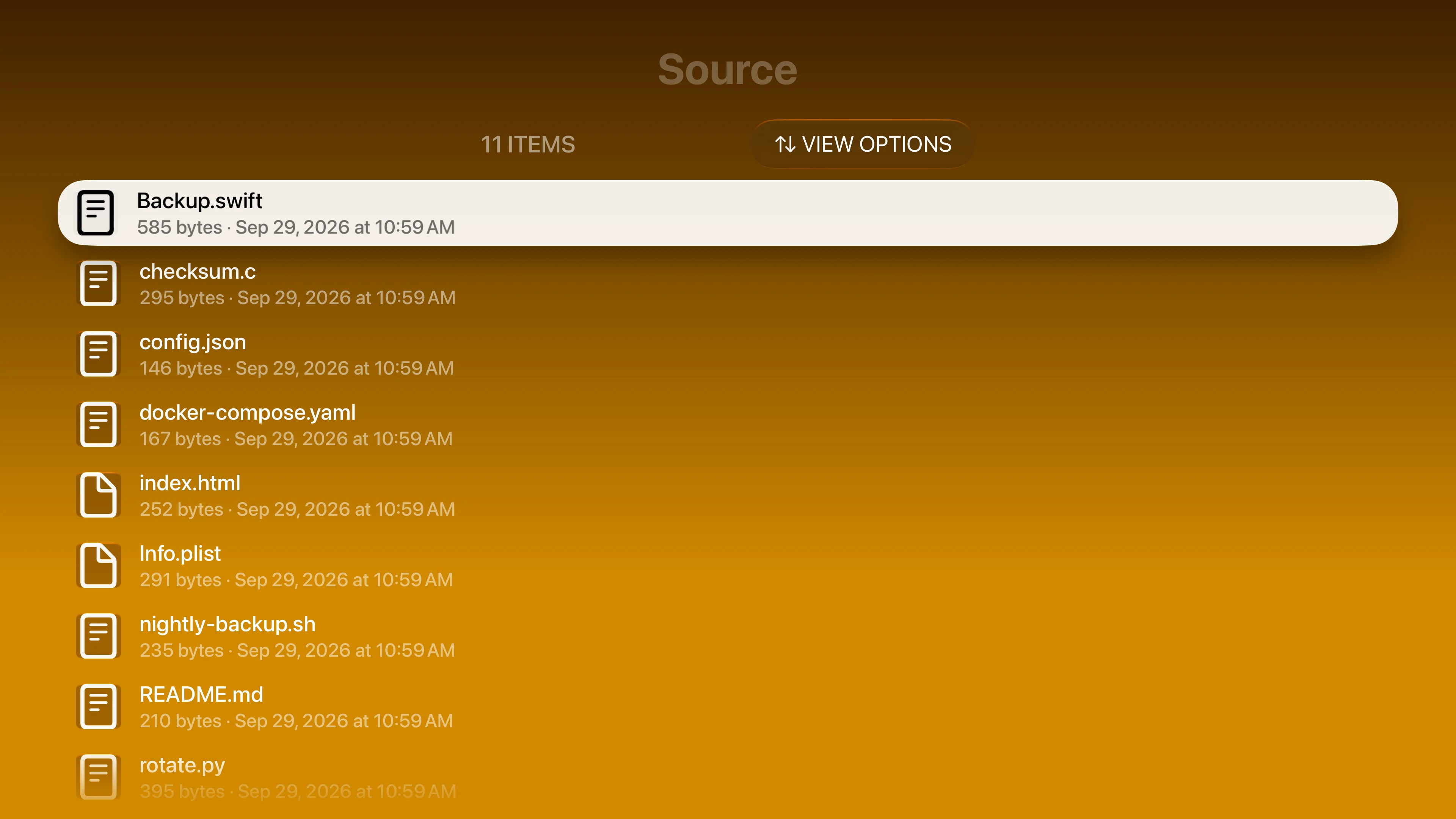
Browse With the Siri Remote
Folders as clear lists, built for the couch
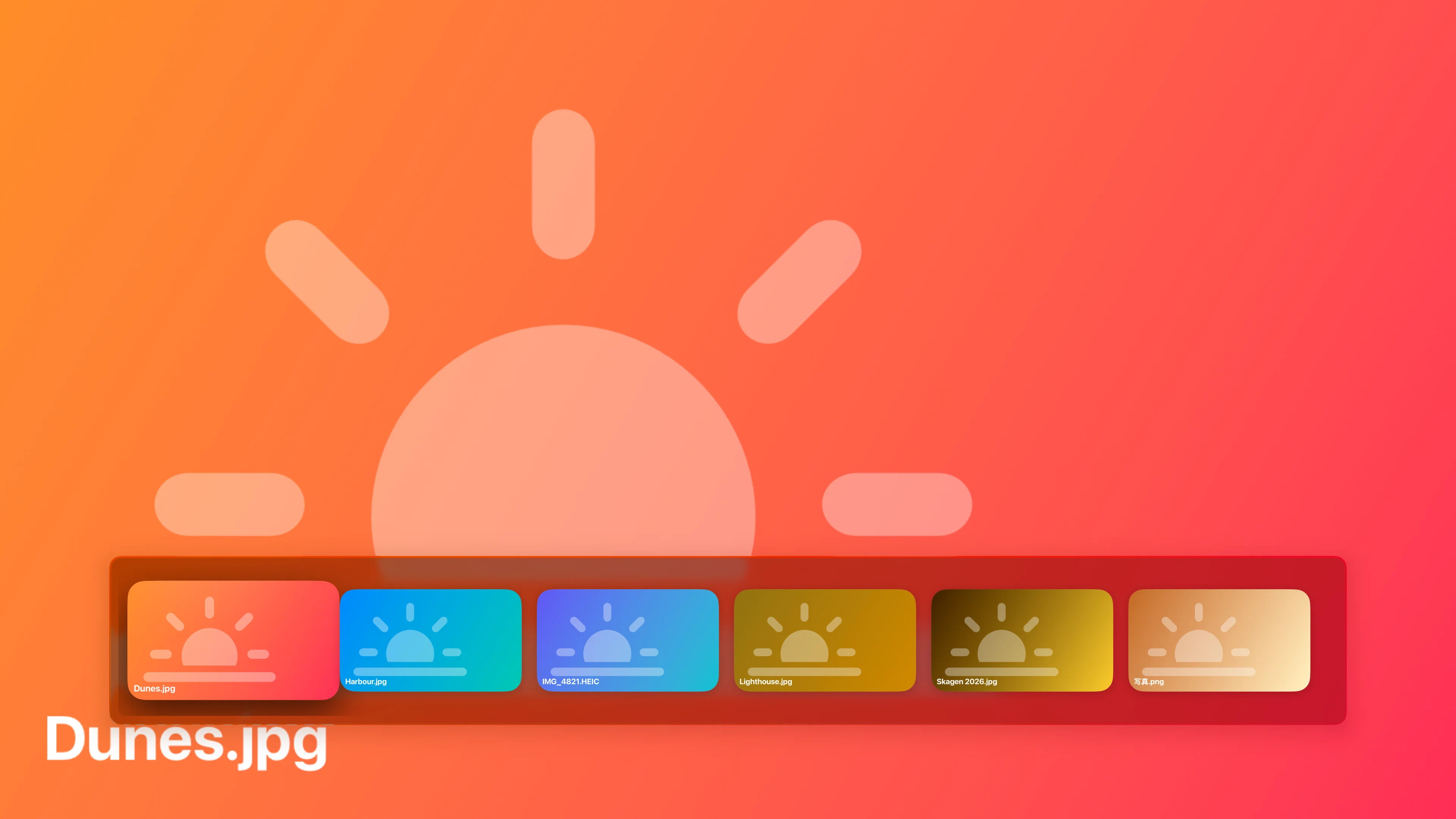
Full-Screen Photos
Page, jump with the filmstrip, or start a slideshow
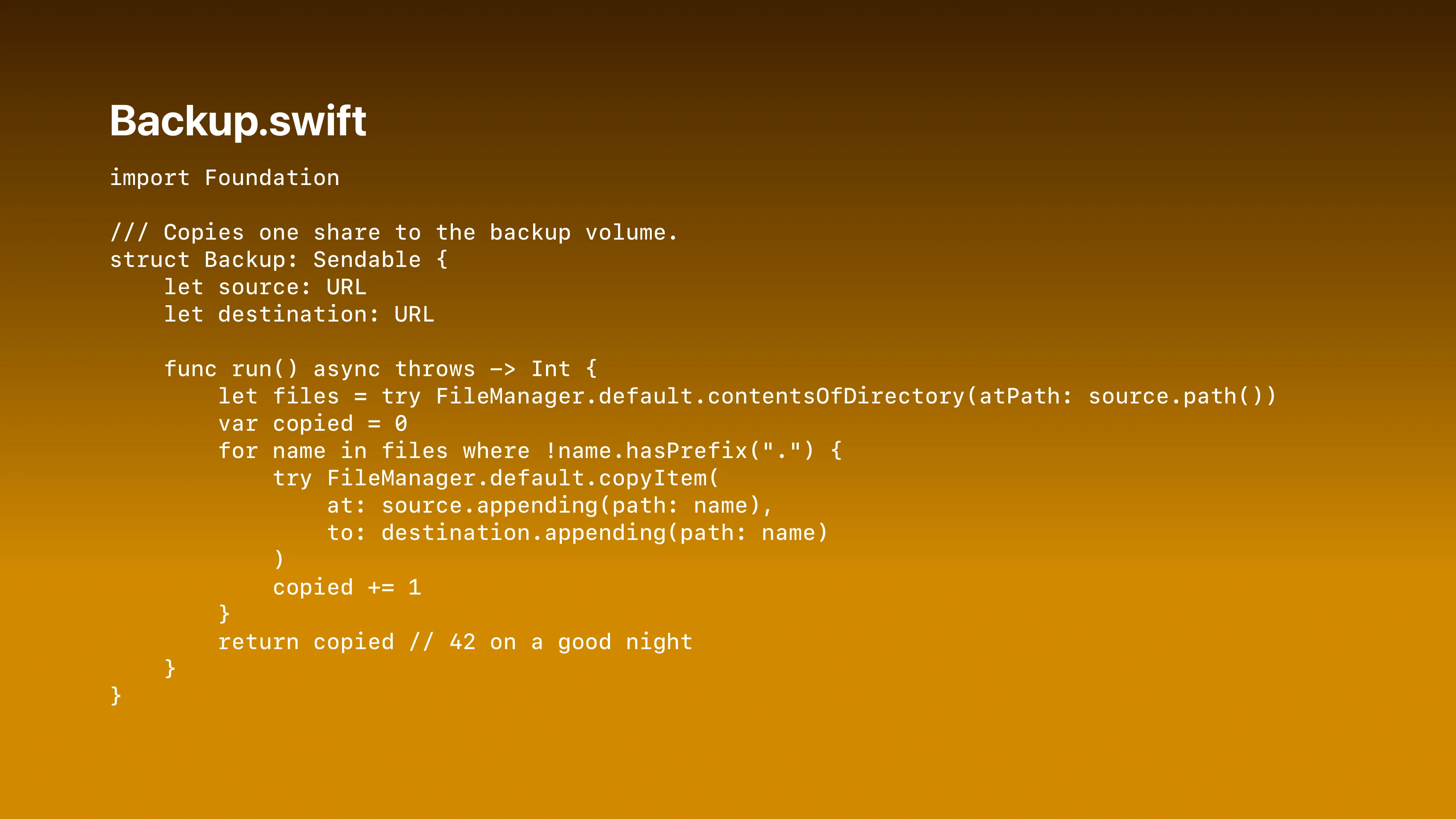
Text and Source Files
Readable on the big screen
iPhone
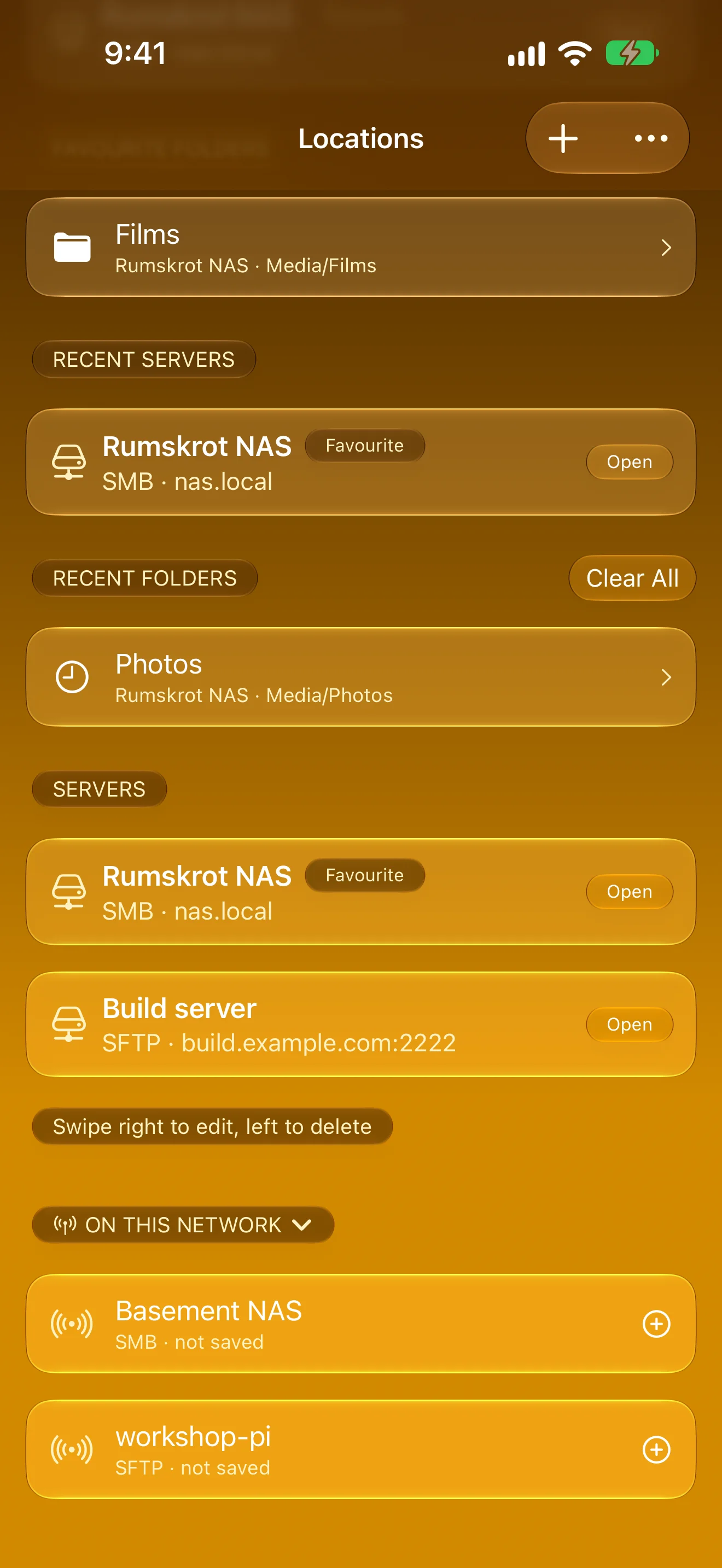
Every Server, One Tap Away
Saved servers, favourite folders and nearby Bonjour hosts
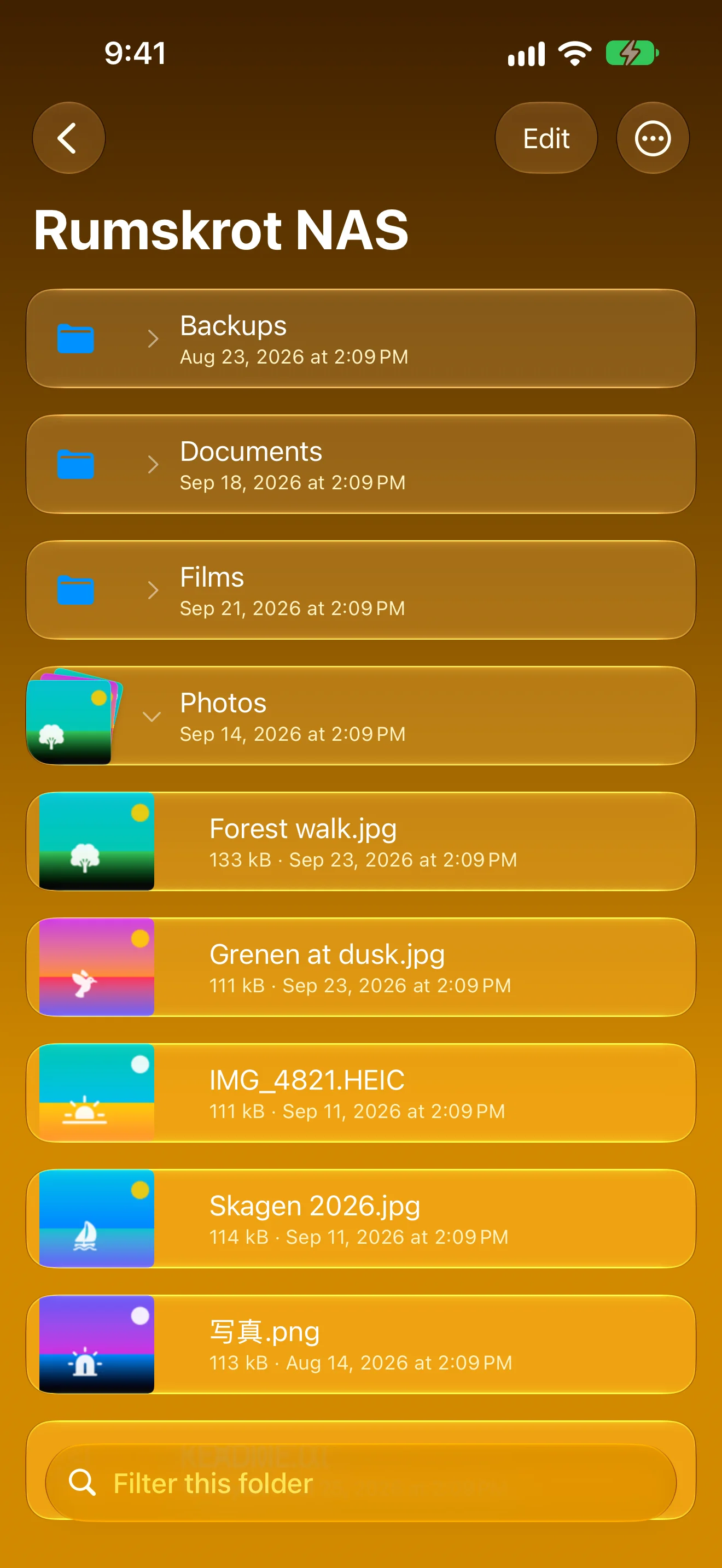
A Real File Browser
Folders expand in place, with photo thumbnails
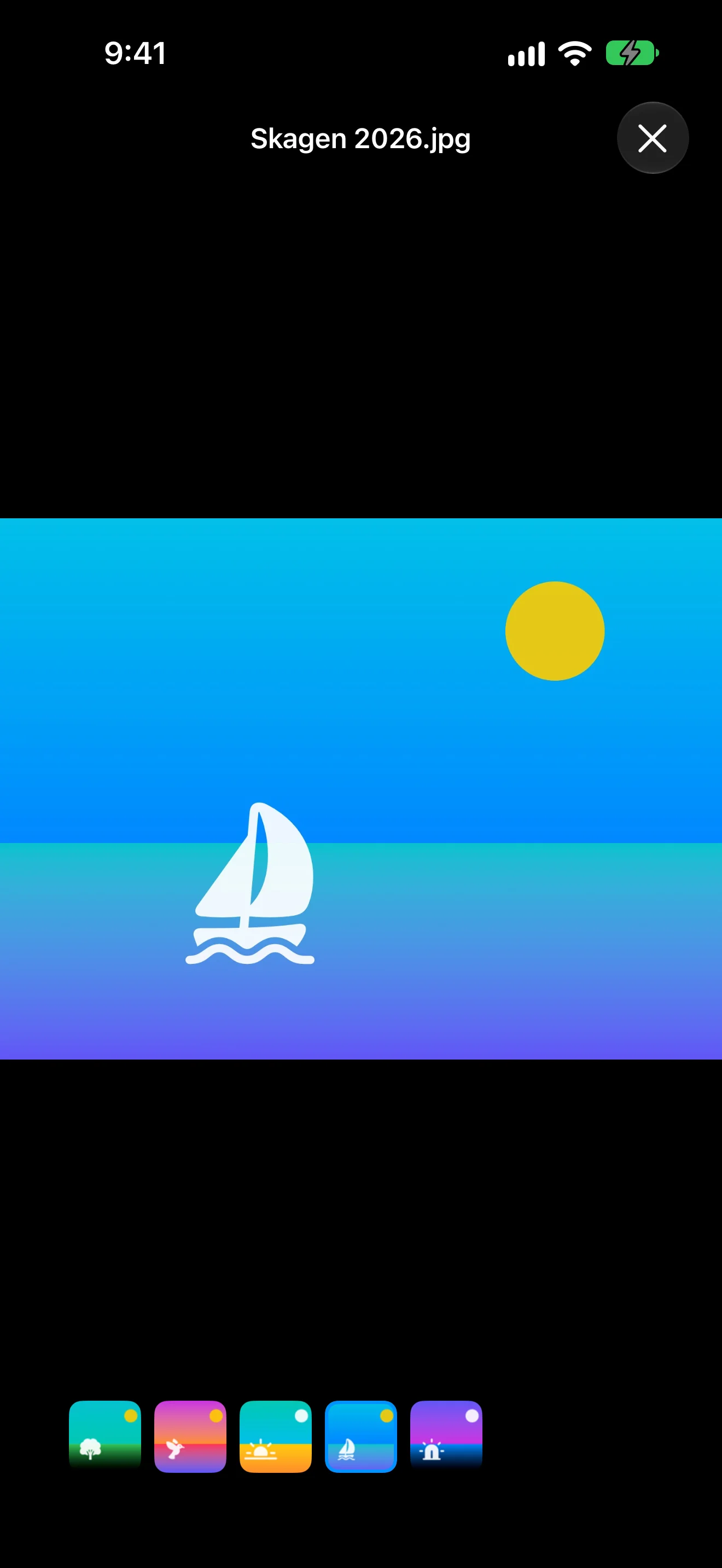
Open Files Straight From the Server
Photos, video, audio, PDFs and text — no copy left behind
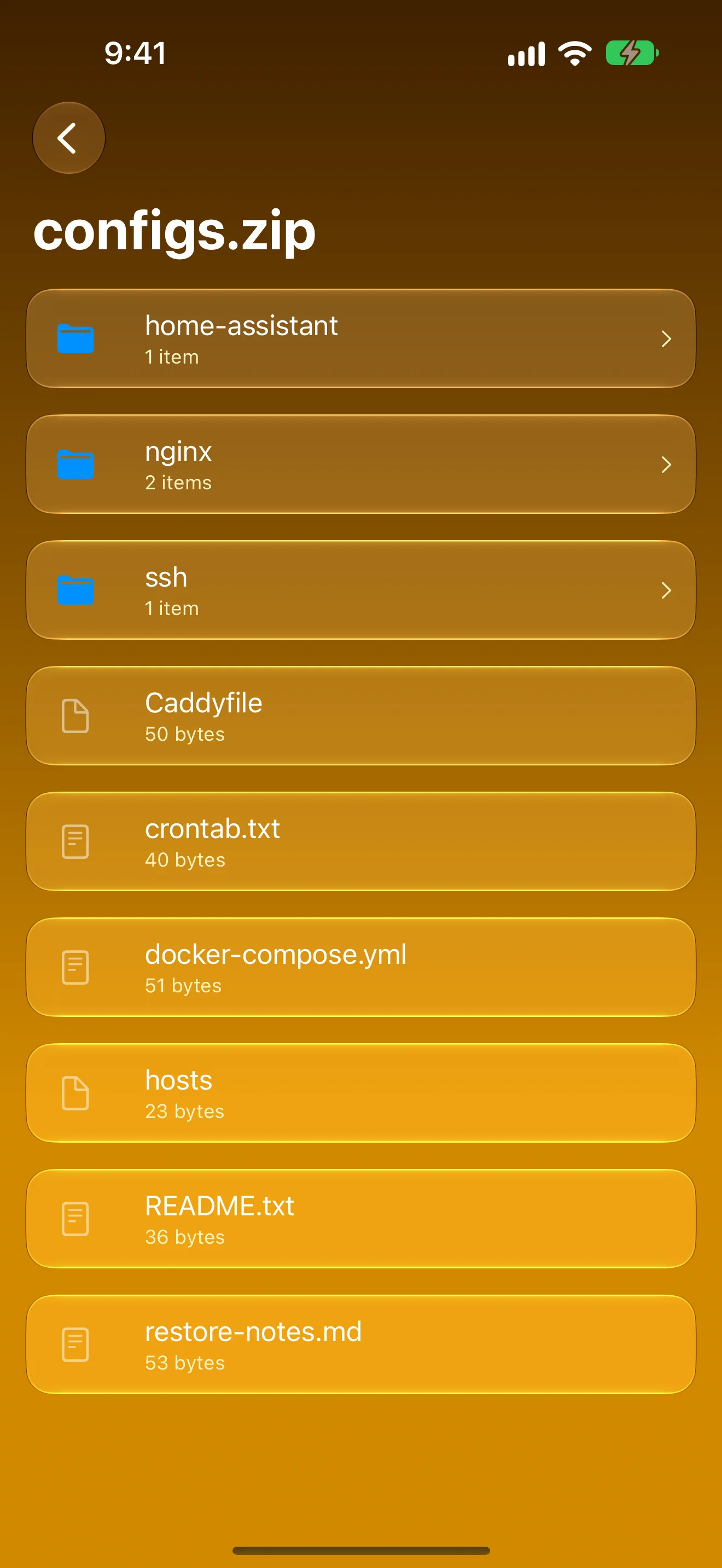
Look Inside Archives
Browse a ZIP, RAR or 7-Zip on the server
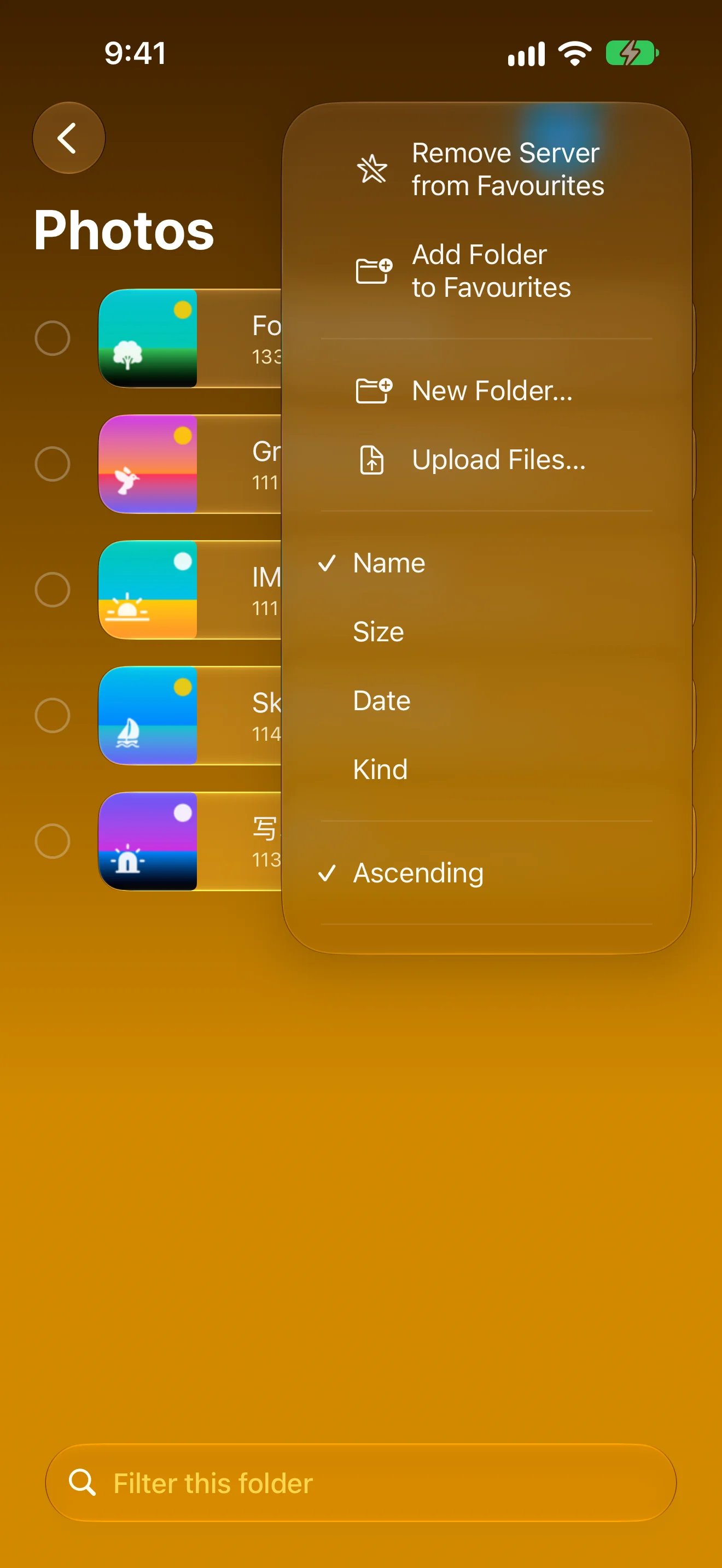
Real File Operations
Create, upload, rename, move and delete — on the server
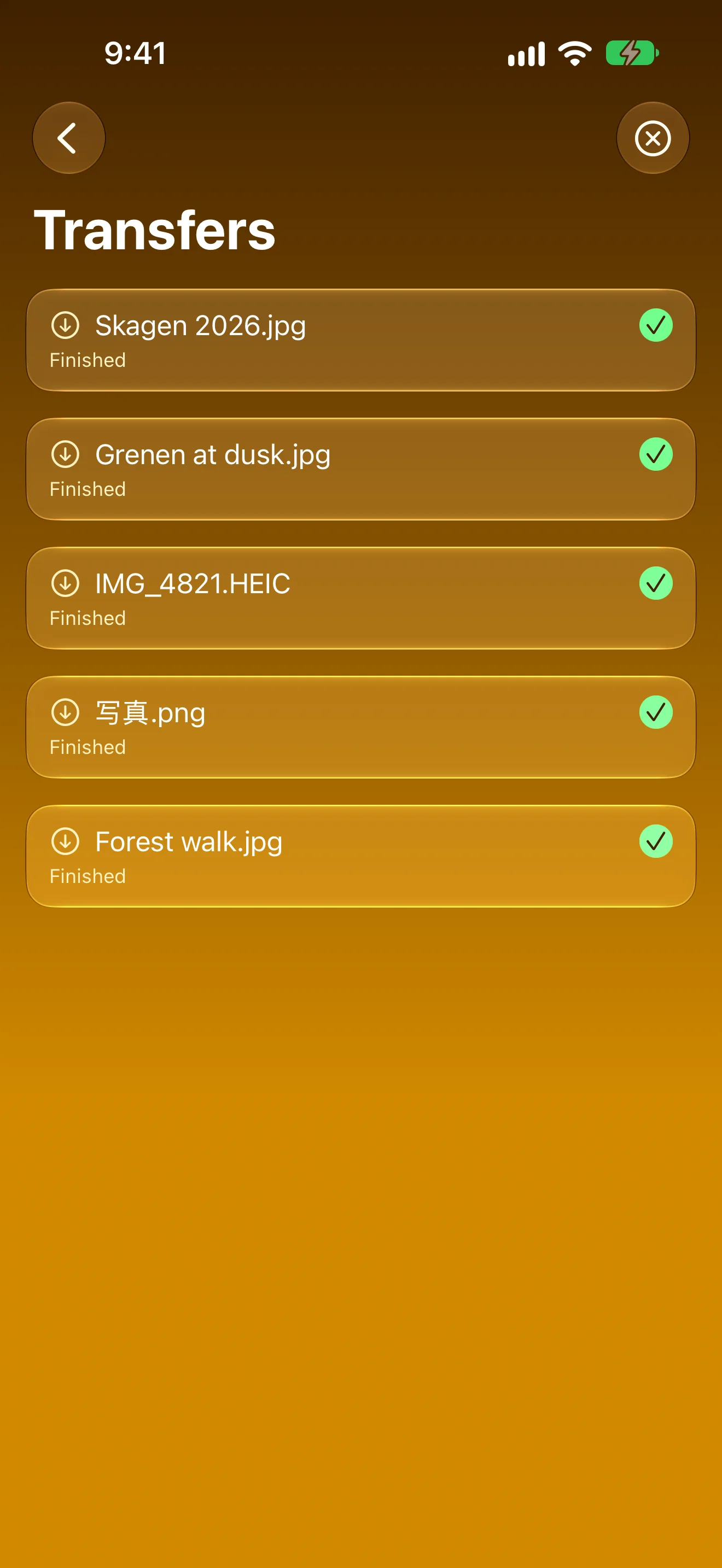
Every Transfer in One Queue
Downloads and uploads with progress, cancel and retry
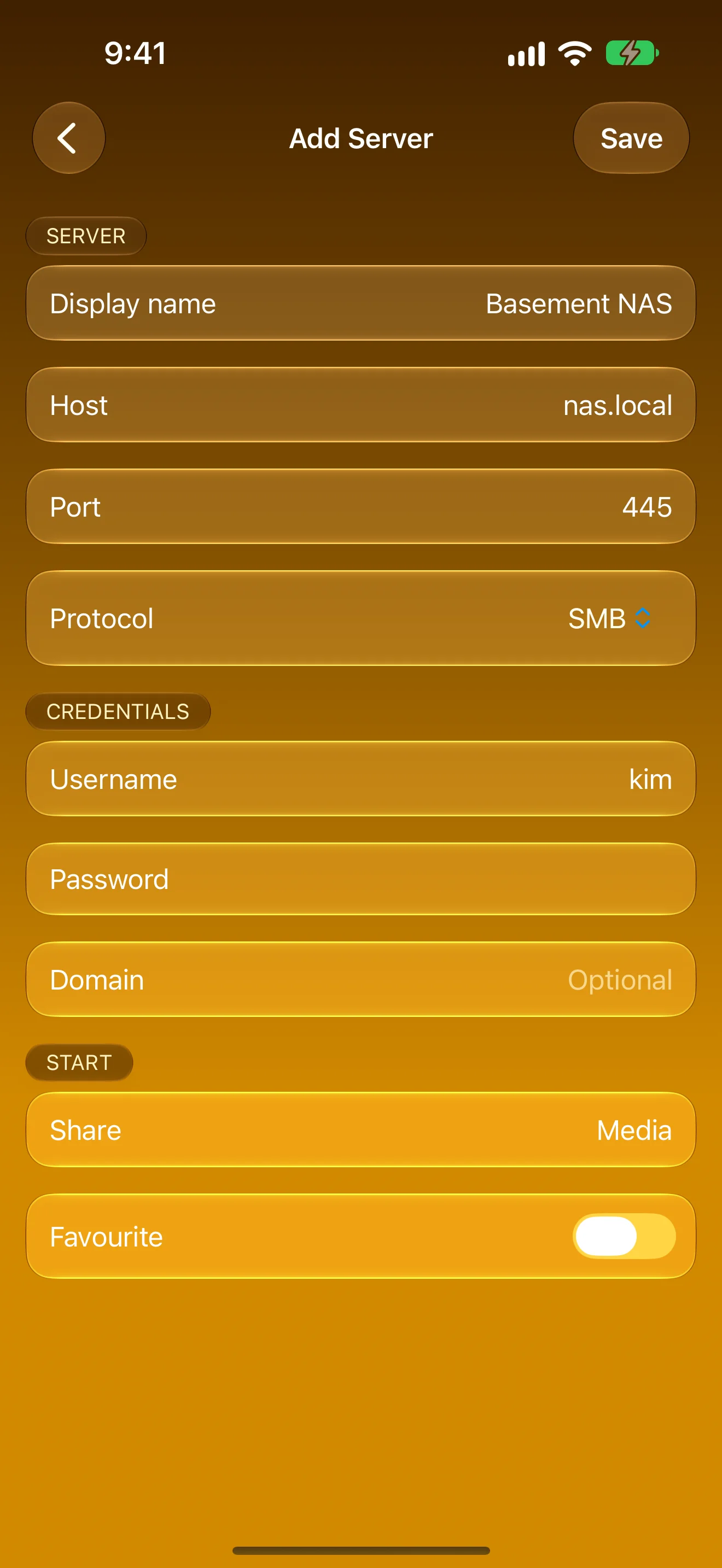
Your Servers, SMB or SFTP
Direct connections, passwords kept in the Keychain
iPad
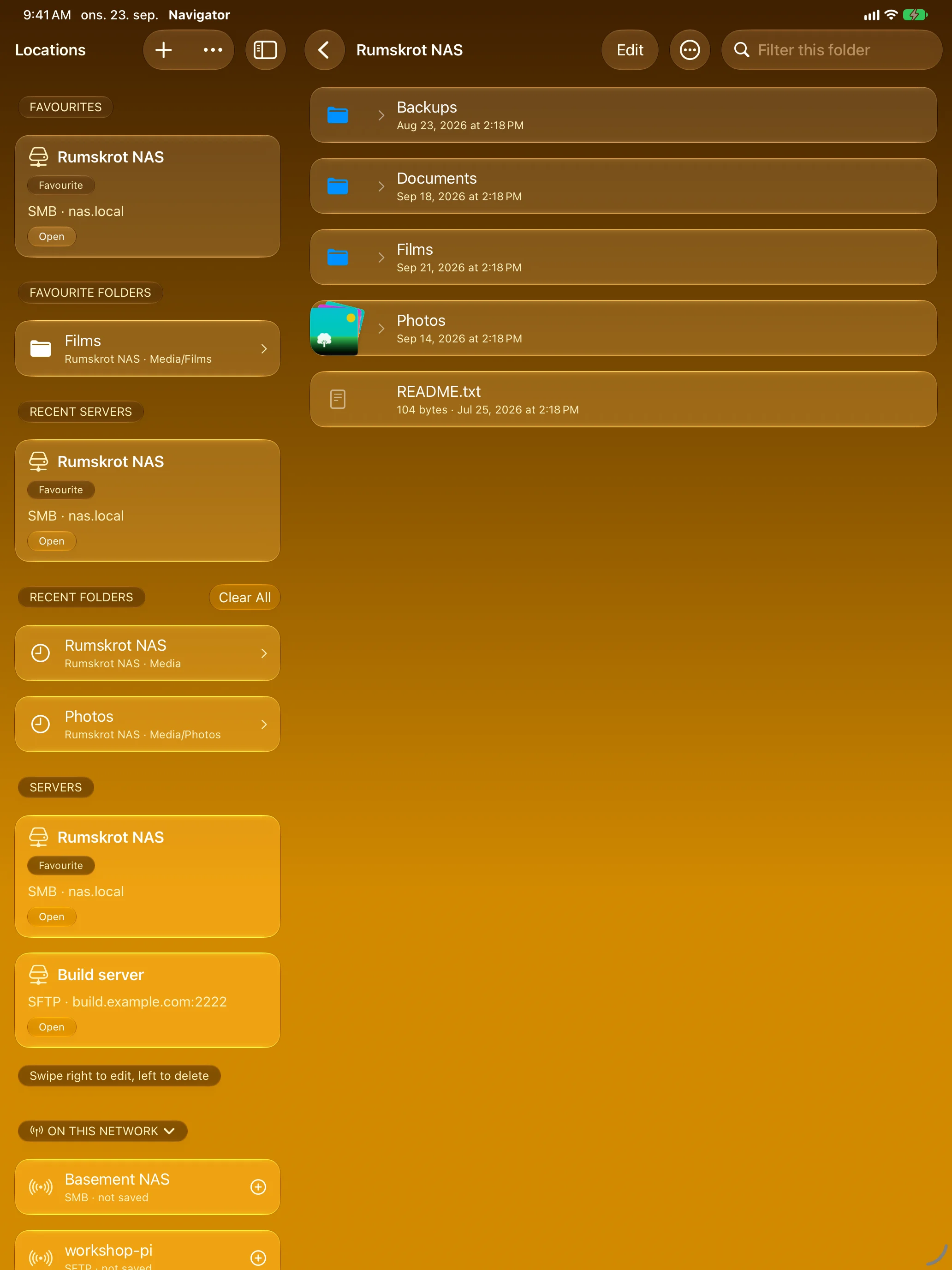
Every Server, One Tap Away
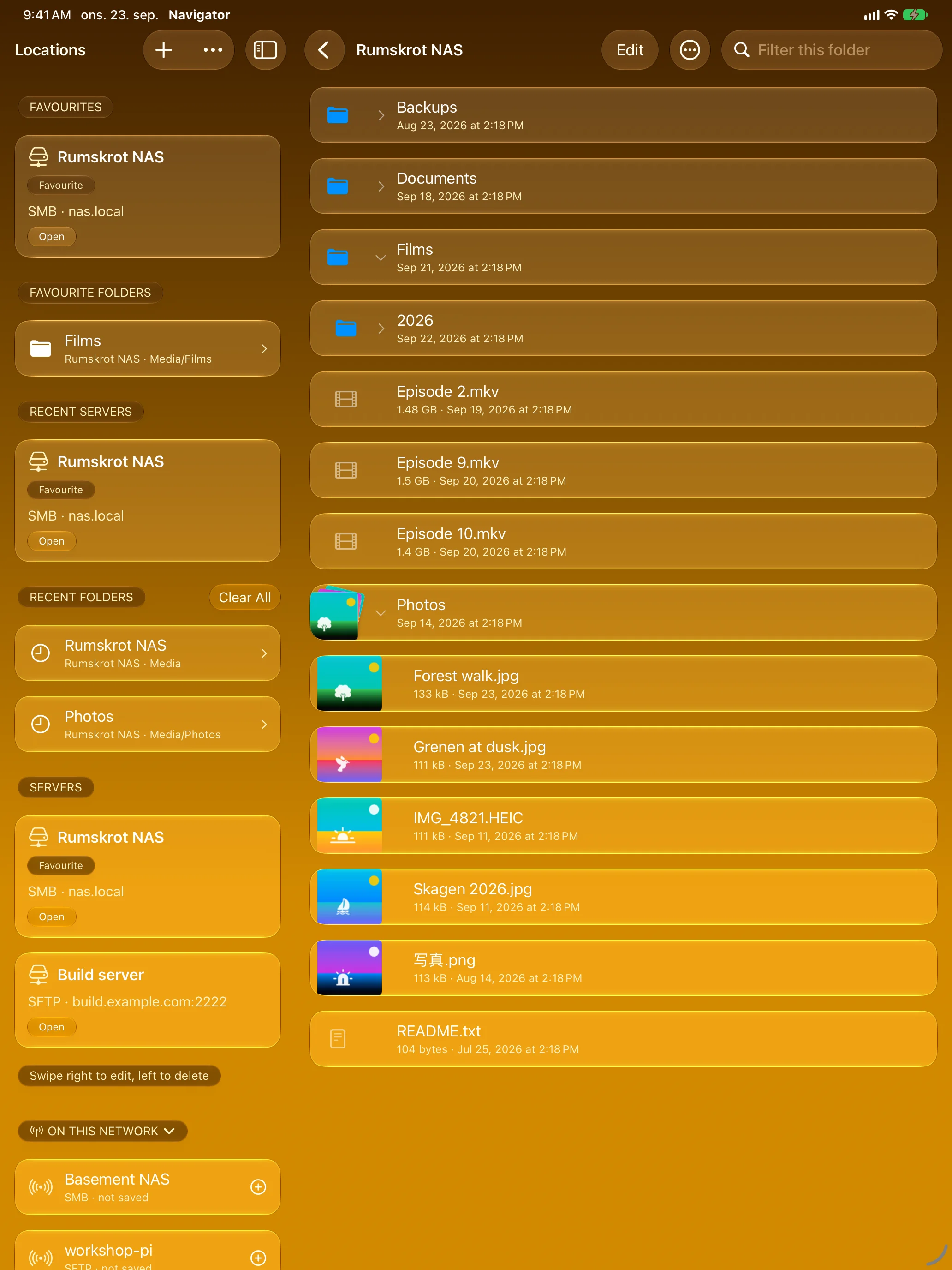
A Real File Browser
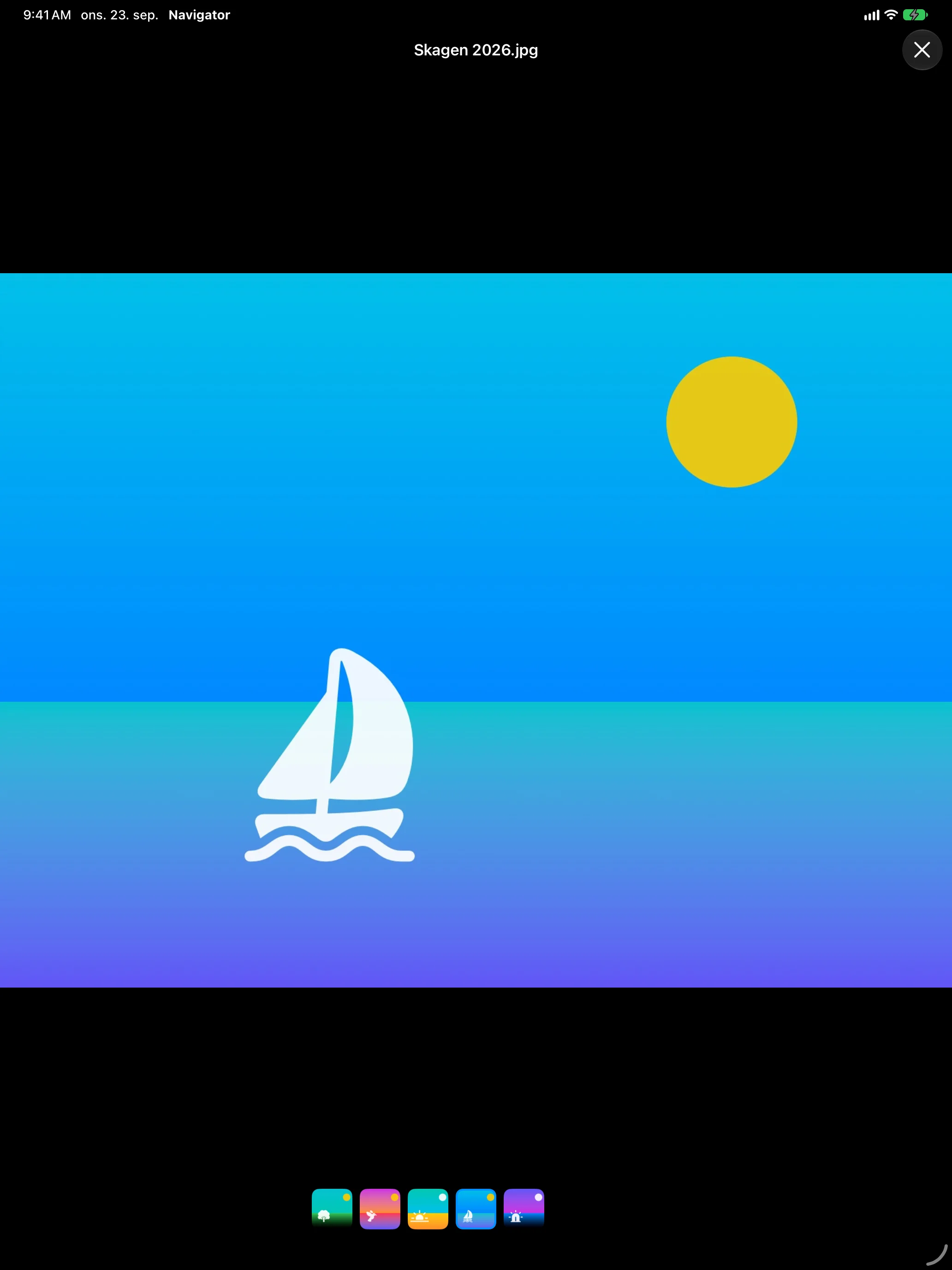
Open Files Straight From the Server
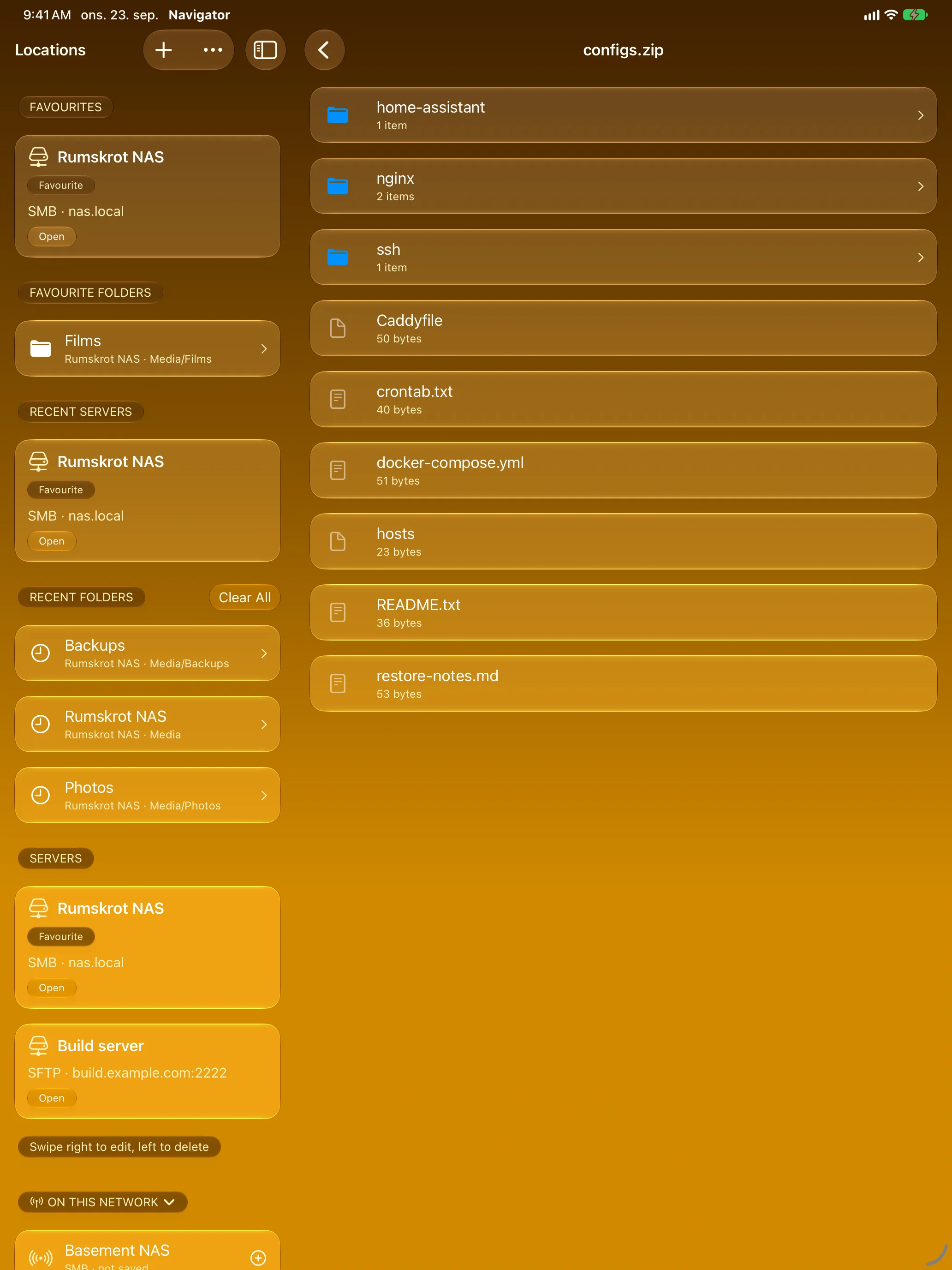
Look Inside Archives
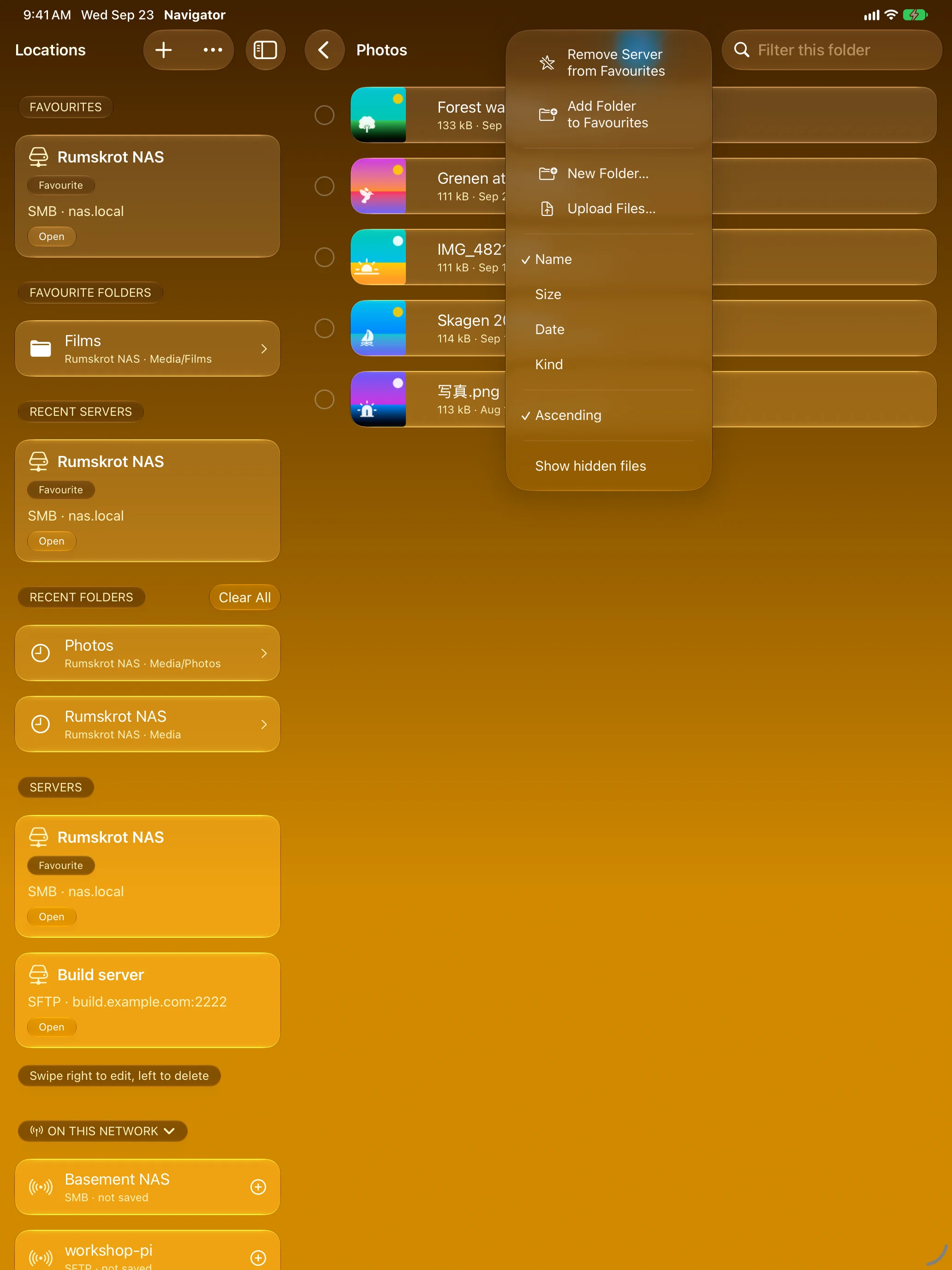
Real File Operations
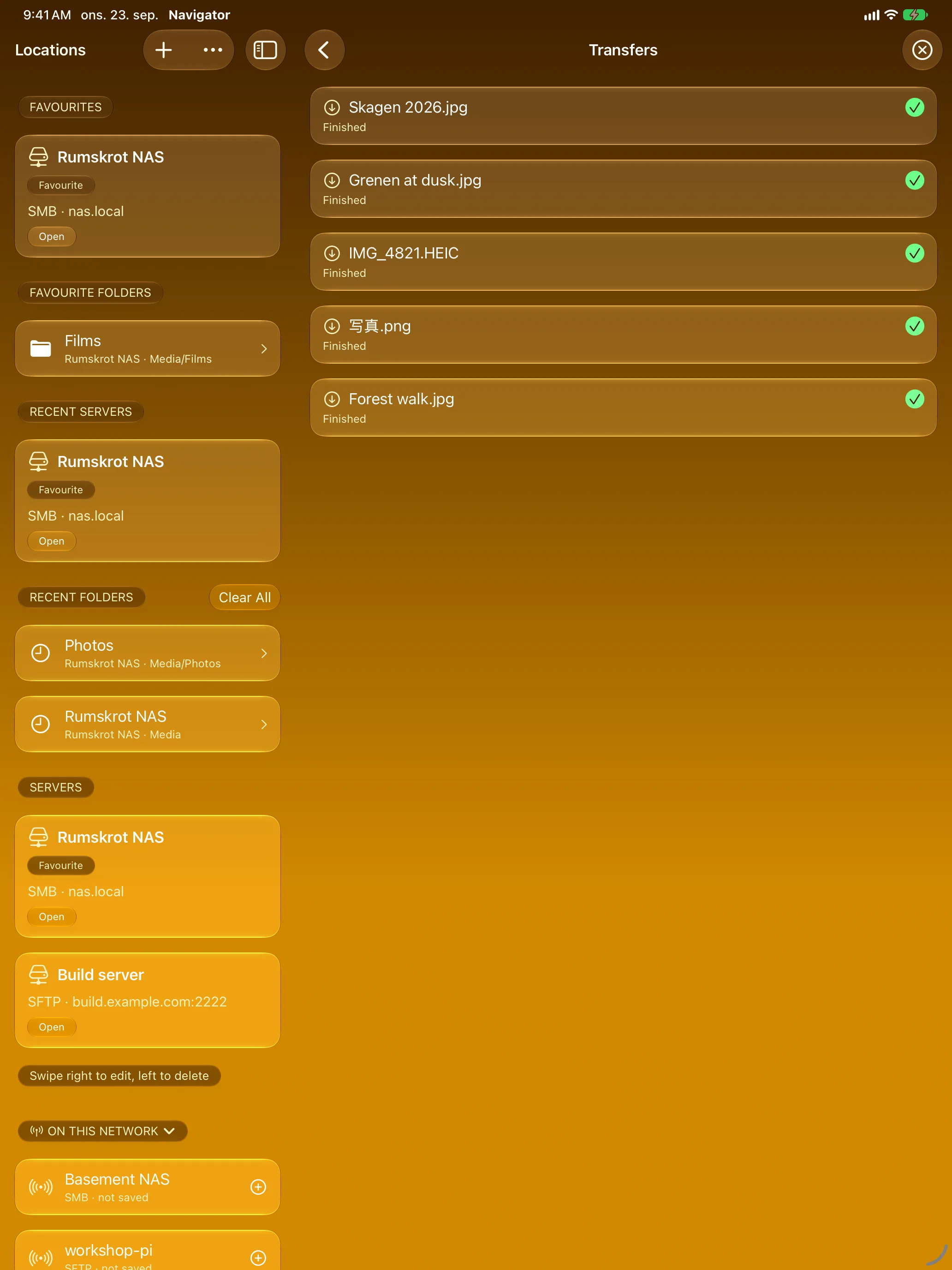
Every Transfer in One Queue
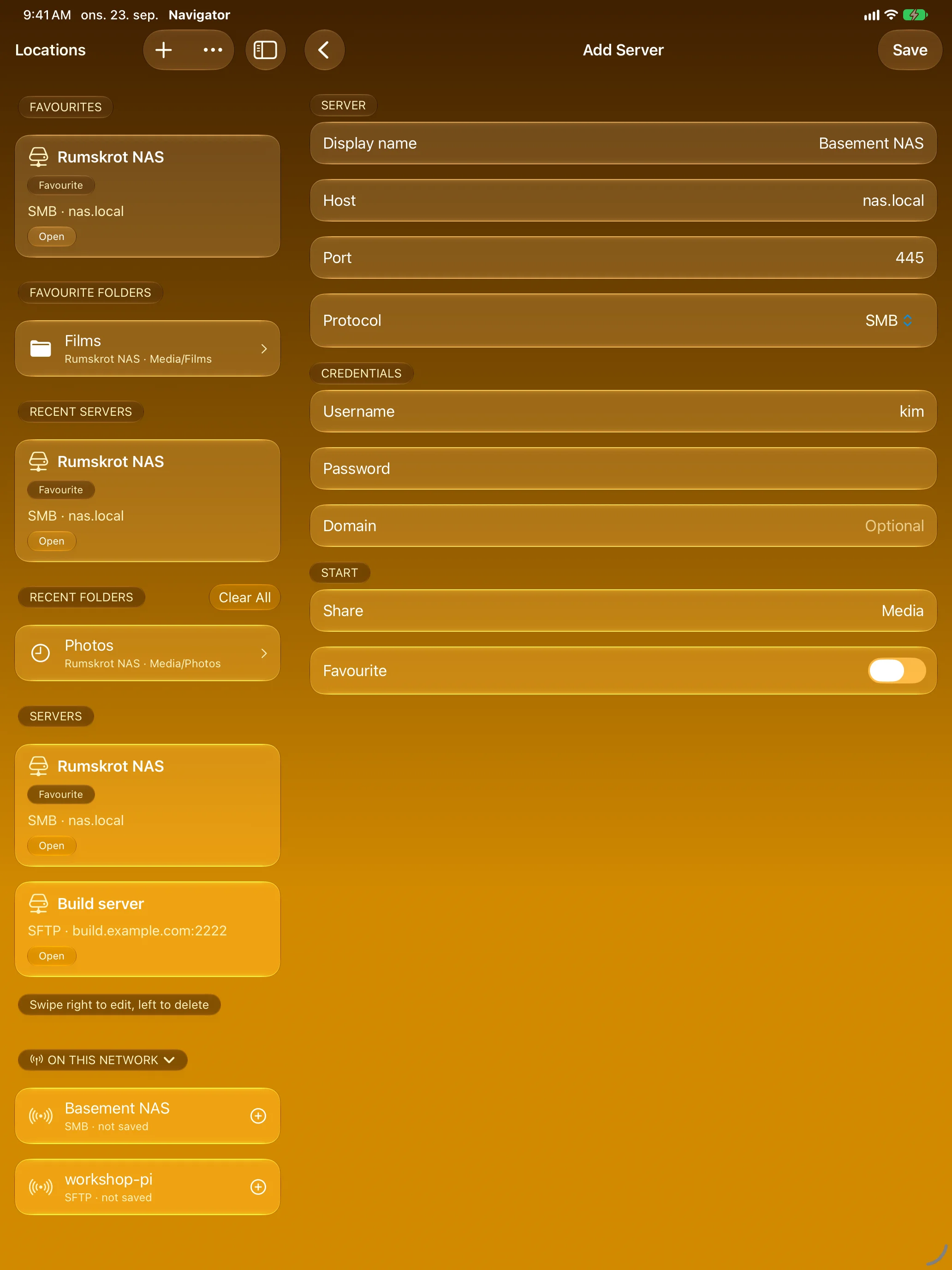
Your Servers, SMB or SFTP
Features
Direct to Your Server
SMB2/3 and SFTP, straight from your device to your NAS or server. No account, no cloud relay, nothing in between.
Bonjour Discovery
SMB and SSH servers on your own network show up by themselves, so adding one is a tap instead of an address.
Folders That Expand in Place
See several levels at once, with photo thumbnails, natural sorting, filtering and hidden-file control.
Full-Screen Previews
Photos, video, audio, PDFs and text open from the server. The temporary copy is cleaned up afterwards.
Archives on the Server
Browse inside ZIP, RAR, 7-Zip and TAR archives without pulling the whole file down first.
A Real Transfer Queue
Downloads and uploads with progress, cancel and retry — plus uploads from any app’s share sheet or Shortcuts.
Passwords in the Keychain
Saved servers and passwords stay in the Keychain and follow you through iCloud Keychain. SFTP host keys are checked every time.
iPhone, iPad and Apple TV
A two-column browser with keyboard navigation on iPad, and your saved servers on the big screen.
About
Rumskrot Navigator is the remote-files member of the Rumskrot toolbelt, and it pairs naturally with the rest: Rumskrot Terminal for SSH, Rumskrot Remote for remote-desktop control, and Rumskrot Archives for unpacking what you bring home.
Private by default: everything talks directly to your own server. No backend, no analytics, no third-party SDKs, no accounts.
Join the beta
Want a say in where Rumskrot Navigator goes next? Join the public beta on TestFlight and try new builds before they reach the App Store.
The beta runs in Apple’s TestFlight app. Install TestFlight, then tap Join — TestFlight installs the beta build of Rumskrot Navigator and offers each new build as it’s ready.
Purchases in TestFlight builds are test purchases: you’re never charged, and they don’t carry over to your account or to the App Store version. Purchases in the App Store version are real — please make sure which version you’re using; we can’t take responsibility for purchases made by mistake.
Spot a bug, a rough edge or a missing feature? Take a screenshot in the beta build and TestFlight offers to send it as feedback, or use Send Beta Feedback in the TestFlight app. Every report is read and helps decide what gets built and fixed next — there’s no support desk behind it, so reports aren’t answered one by one.
To leave the beta, open Rumskrot Navigator in the TestFlight app and tap Stop Testing.