Traverse
Instruments for the journey, not directions for it
Traverse answers one question per screen in one glanceable number: speed, altitude, vertical speed, grade, heading, distance to a target. It tells you what is happening right now, properly smoothed, on a trail, a bike, a ferry or a ski lift — and the full set now runs as a live dashboard on iPhone and iPad.
Public Beta Open to everyone on TestFlight — the latest build, before it reaches the App Store.
- Two kinds of steep. Vertical speed and grade answer different questions; choose the averaging window with the Digital Crown.
- Honest readings. Every position shows its accuracy, every heading names its sensor, a dash is shown instead of a made-up zero.
- Journeys with a summary. Distance, climb, highest point, peak speed and where you ended relative to the start — knots and nautical miles first-class.
Use it when… the cable car is climbing and you want to know how fast, or the ferry is making you wonder how many knots.
Apple Watch
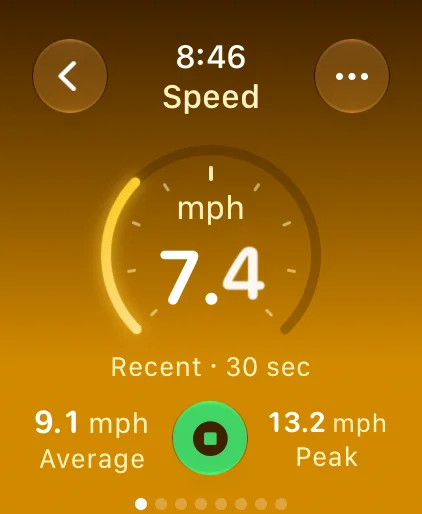
How fast, right now
Current, average and peak
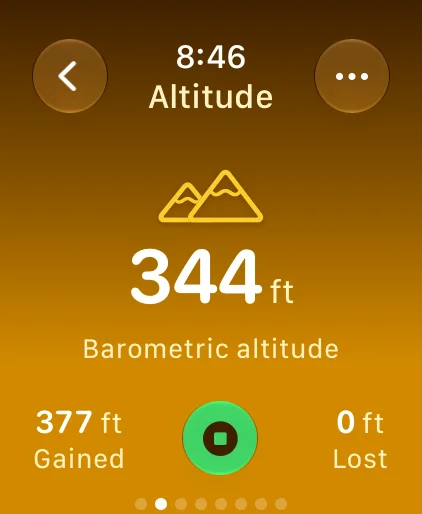
How high you are
And how much you’ve climbed
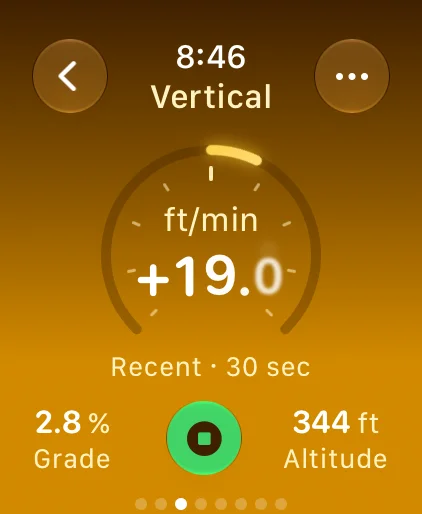
How fast you’re climbing
Vertical speed, properly smoothed
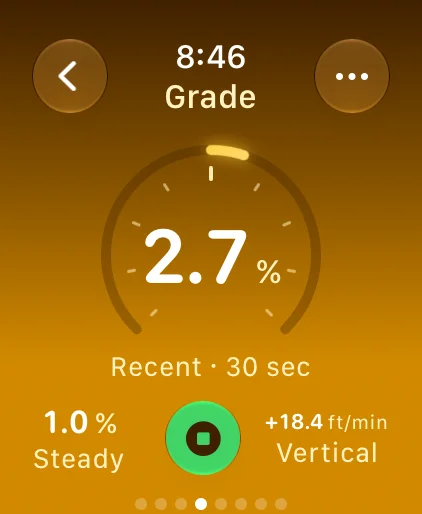
How steep it gets
Measured, not guessed
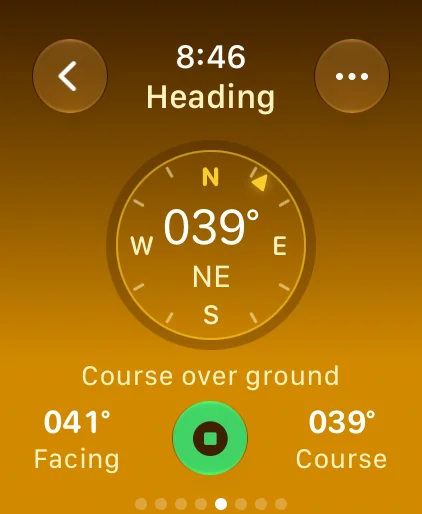
Which way you’re going
Every heading names its sensor
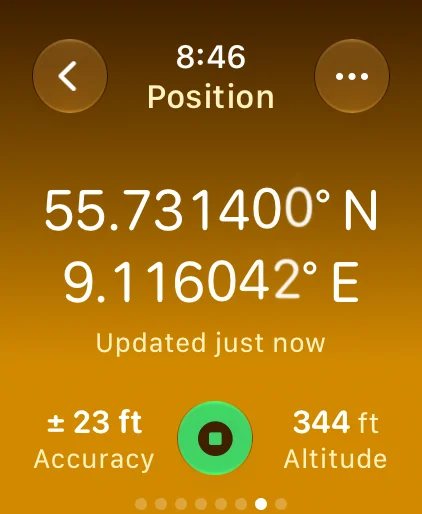
Exactly where you are
Always with its accuracy
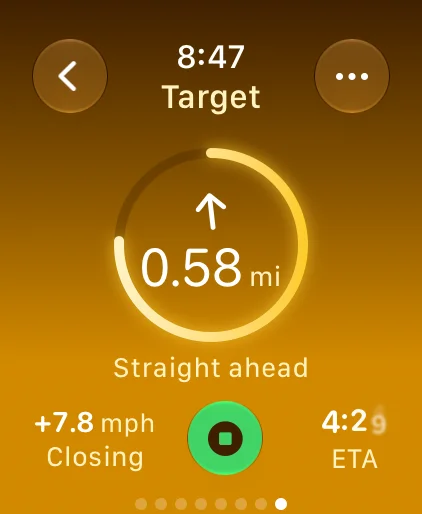
How far to go
Distance, closing speed, ETA
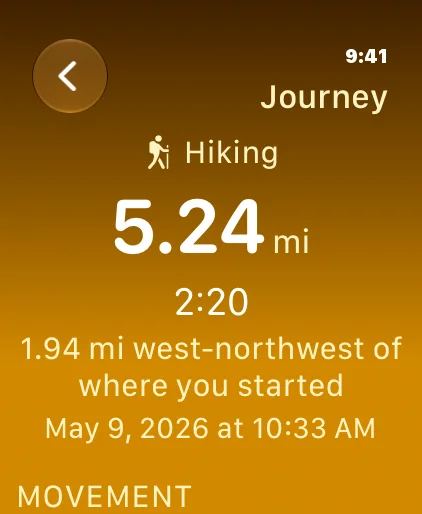
What you just did
Every journey gets a summary
iPhone
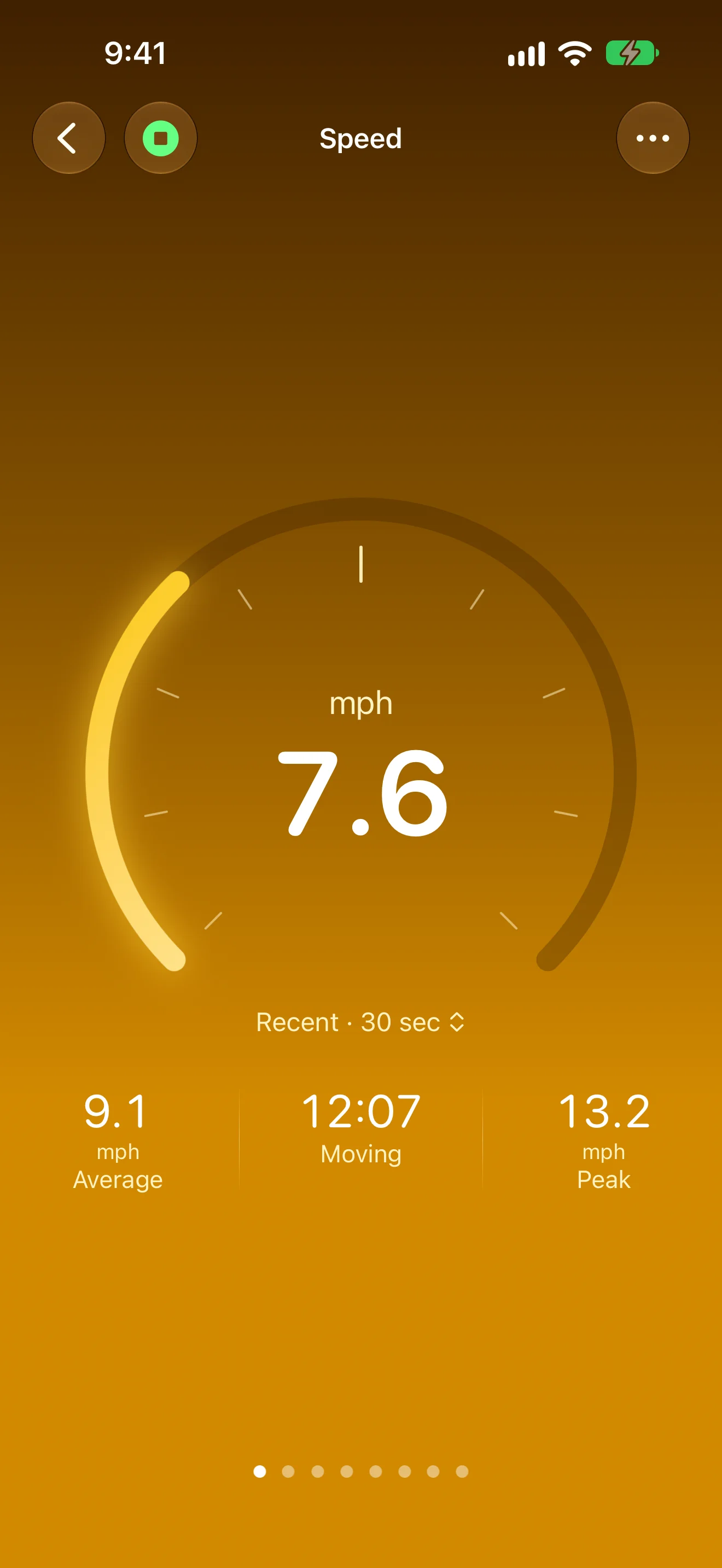
How fast, right now
Current, average and peak
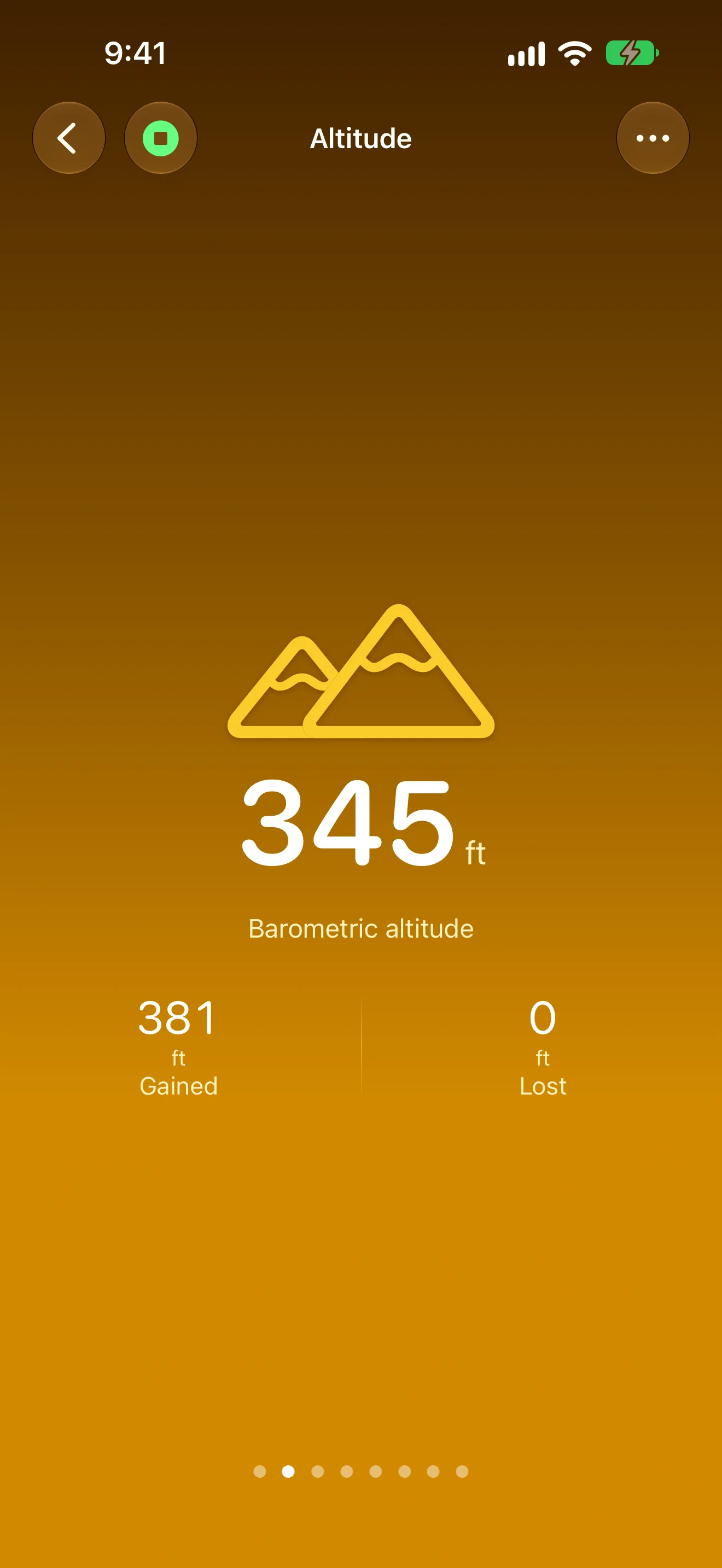
How high you are
And how much you’ve climbed
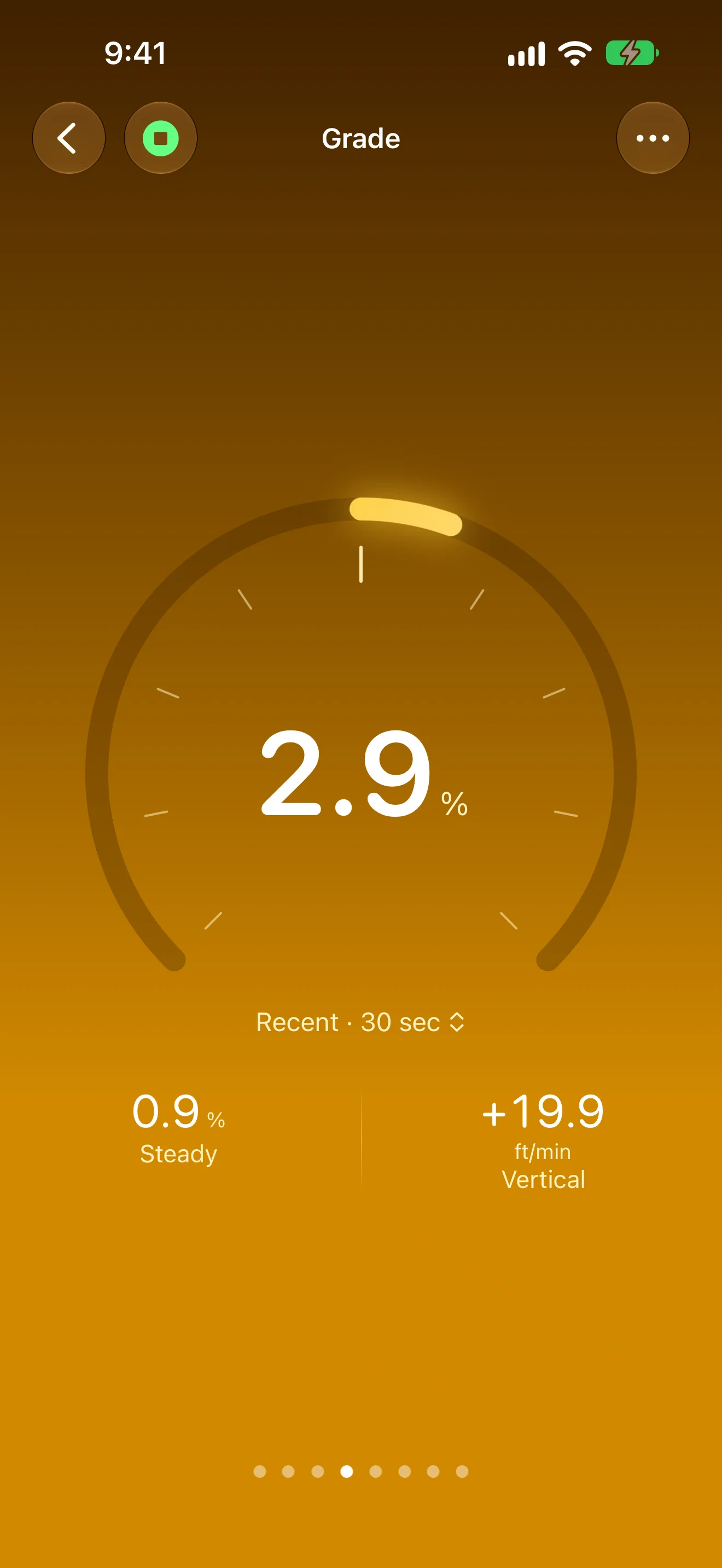
How steep it gets
Grade and climb rate, smoothed
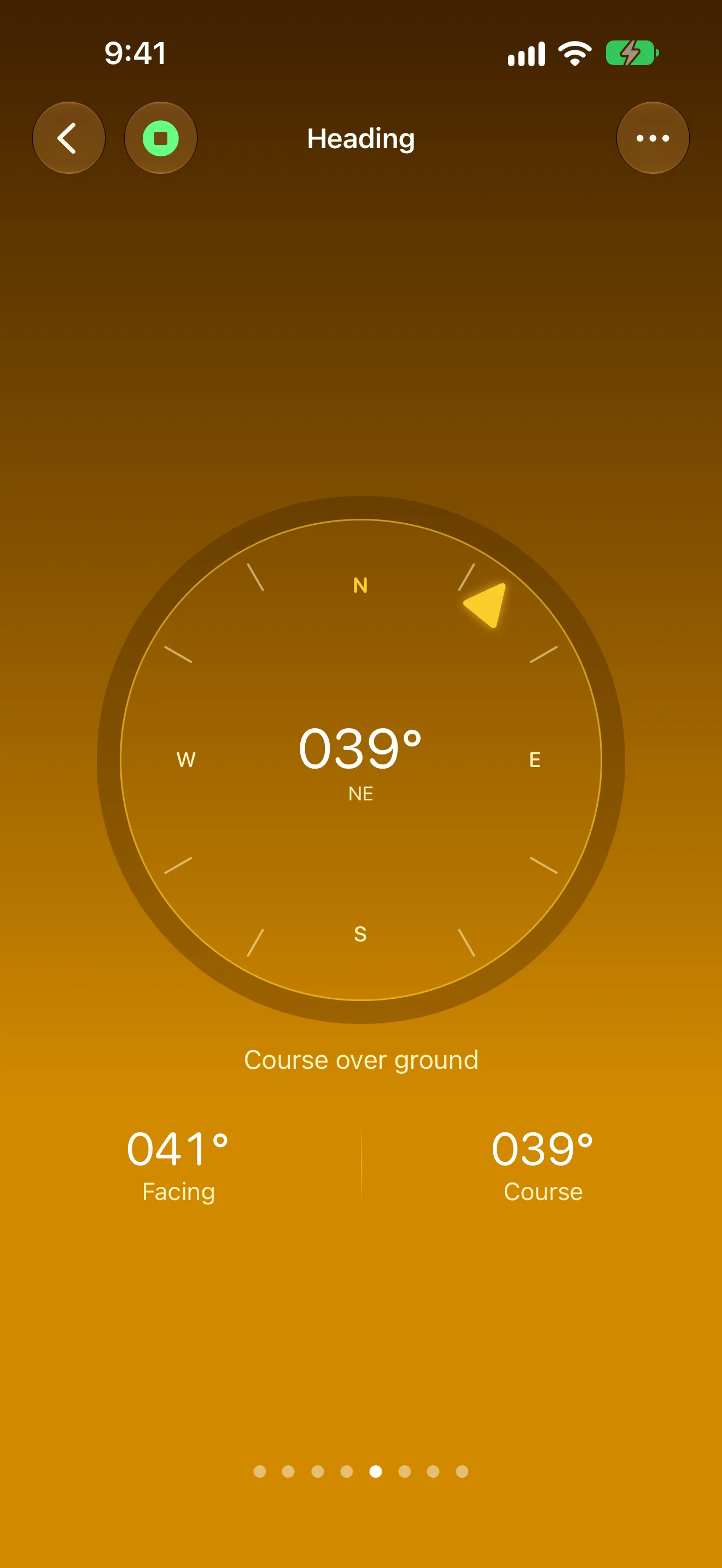
Which way you’re going
Every heading names its sensor
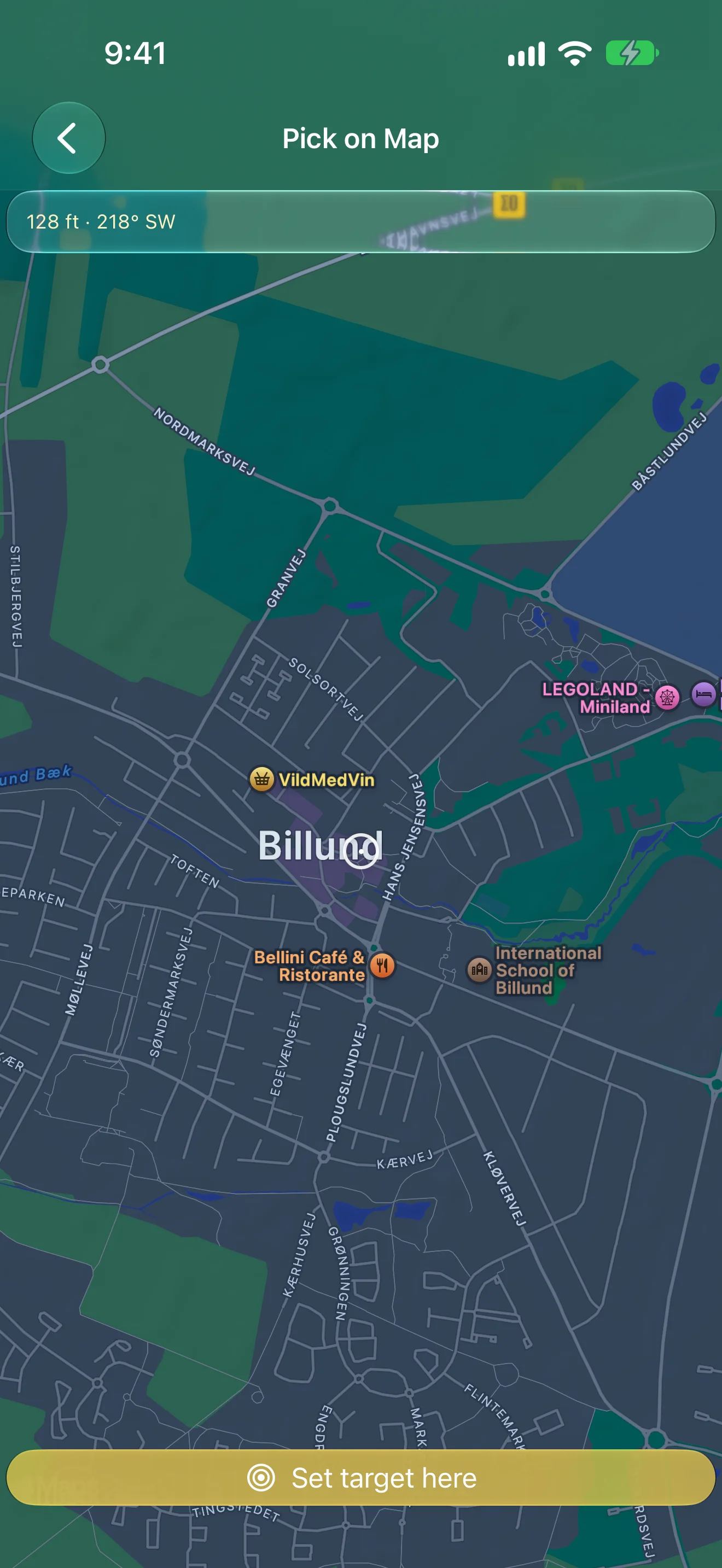
Pick any point as a target
Pan the map under a crosshair
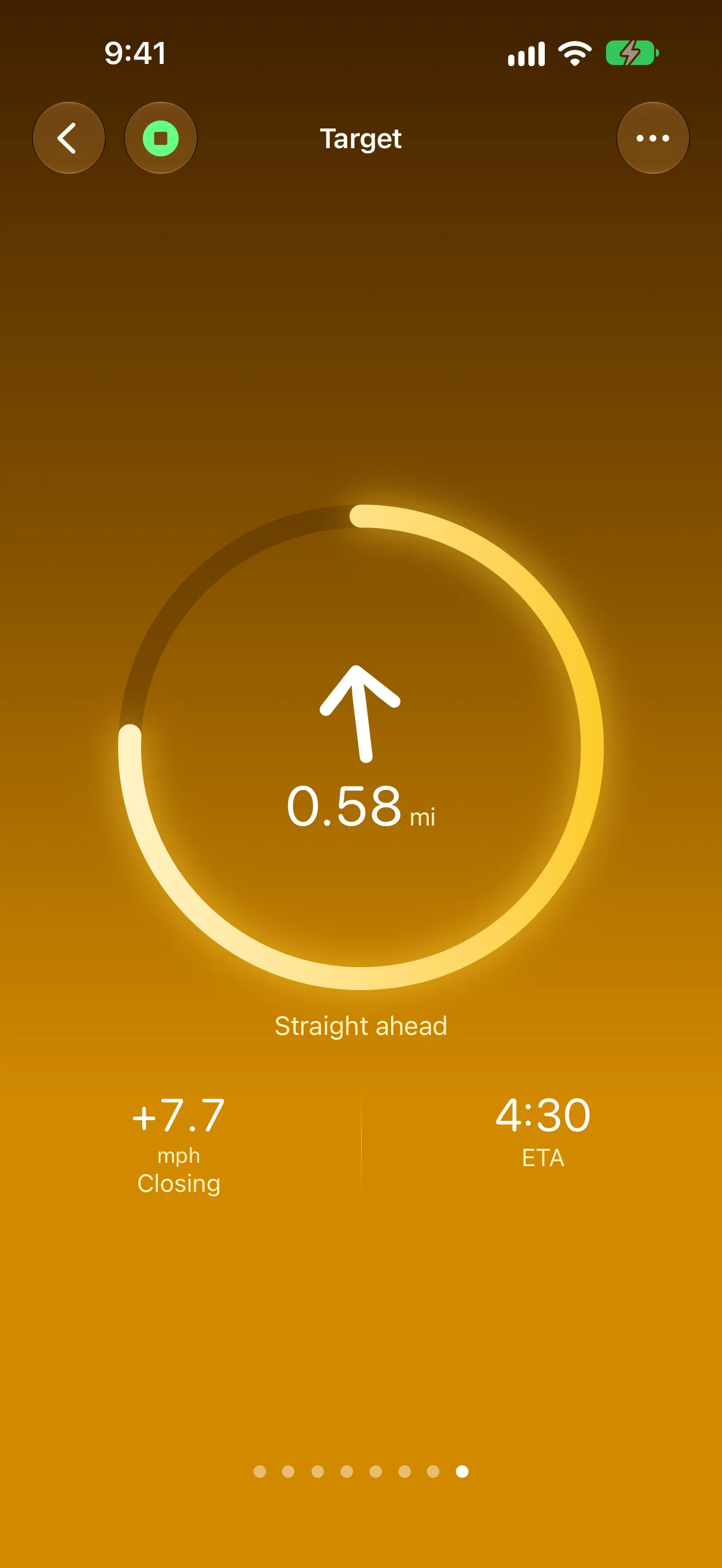
How far to go
Distance, closing speed, ETA
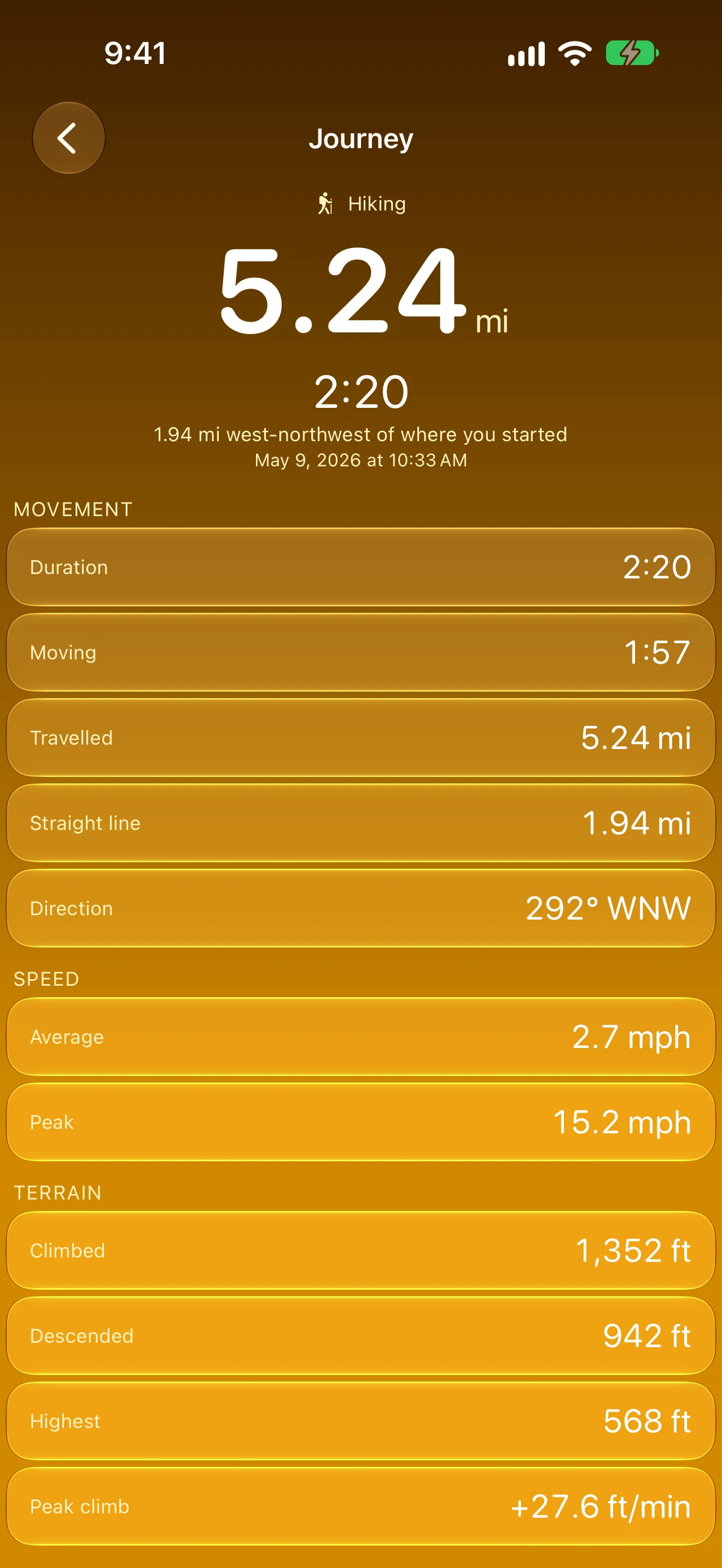
What you just did
Every journey gets a summary
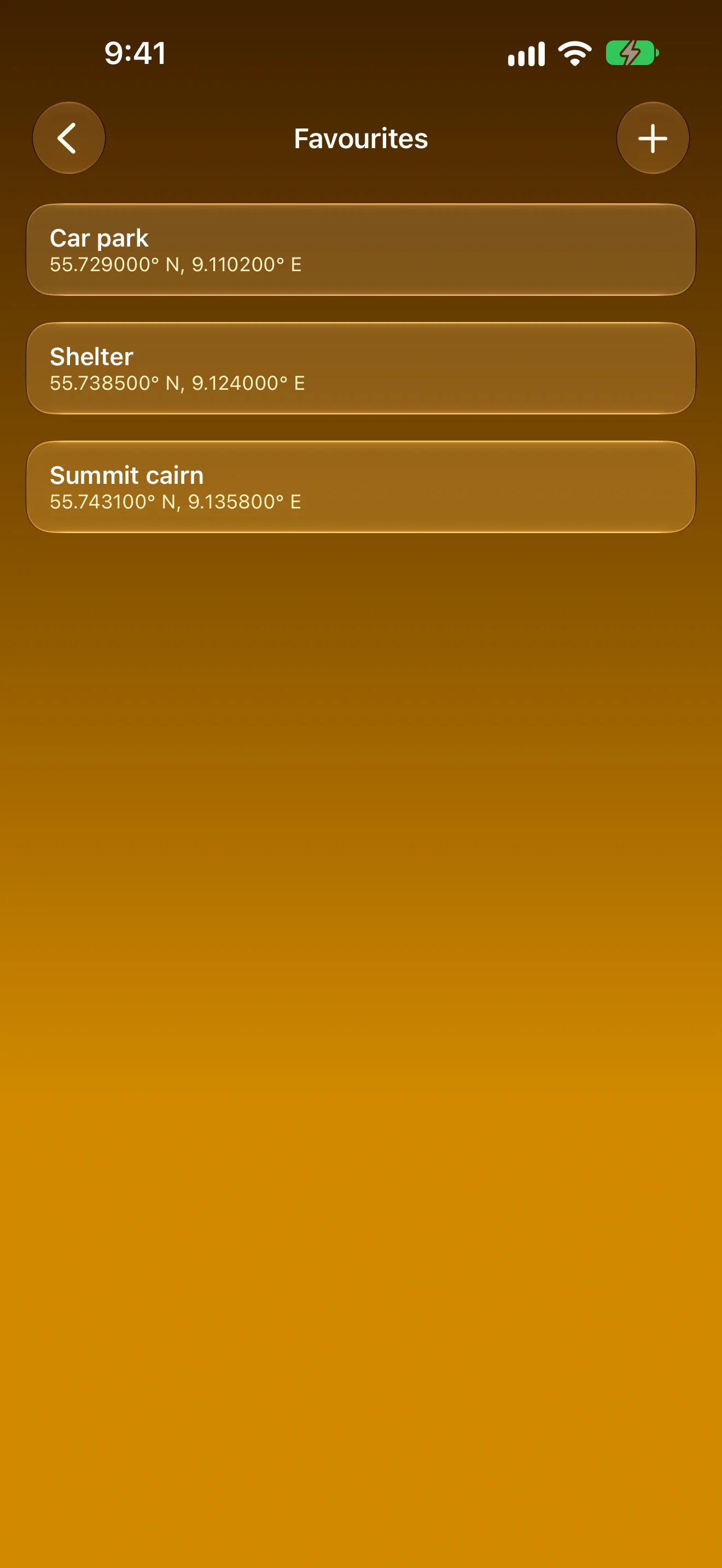
Your places, on both devices
Save here, steer to them from your wrist
iPad
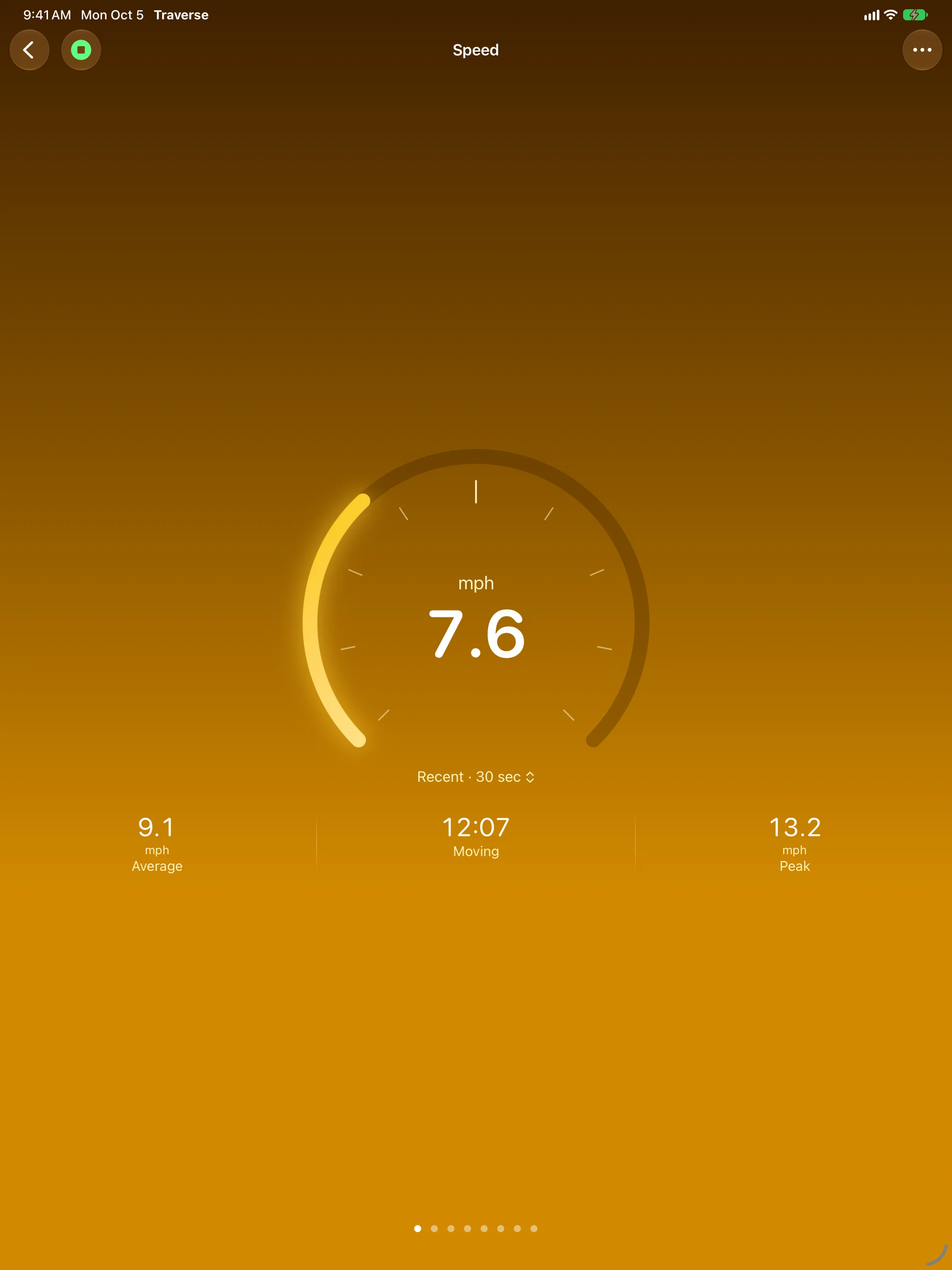
How fast, right now
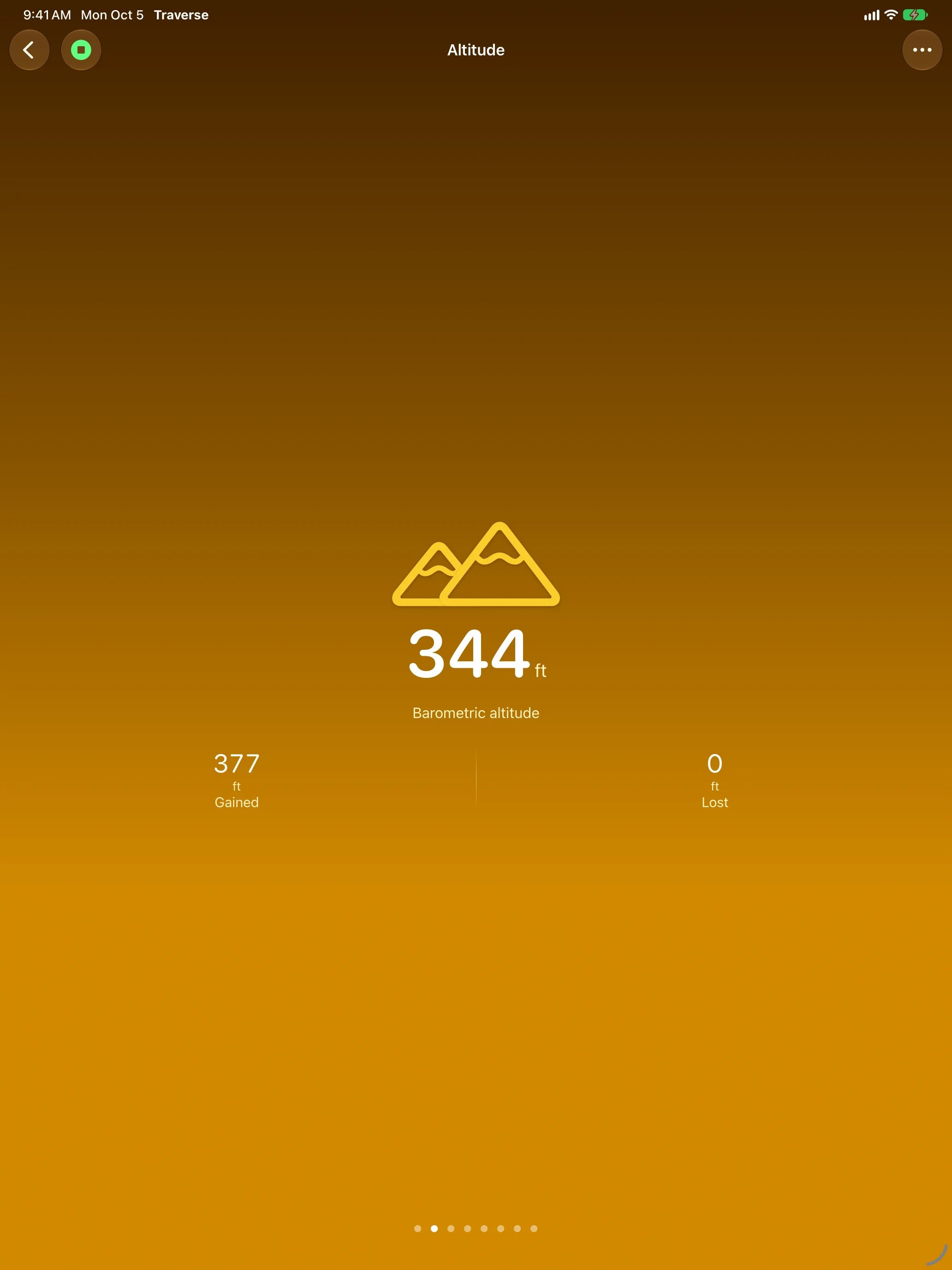
How high you are
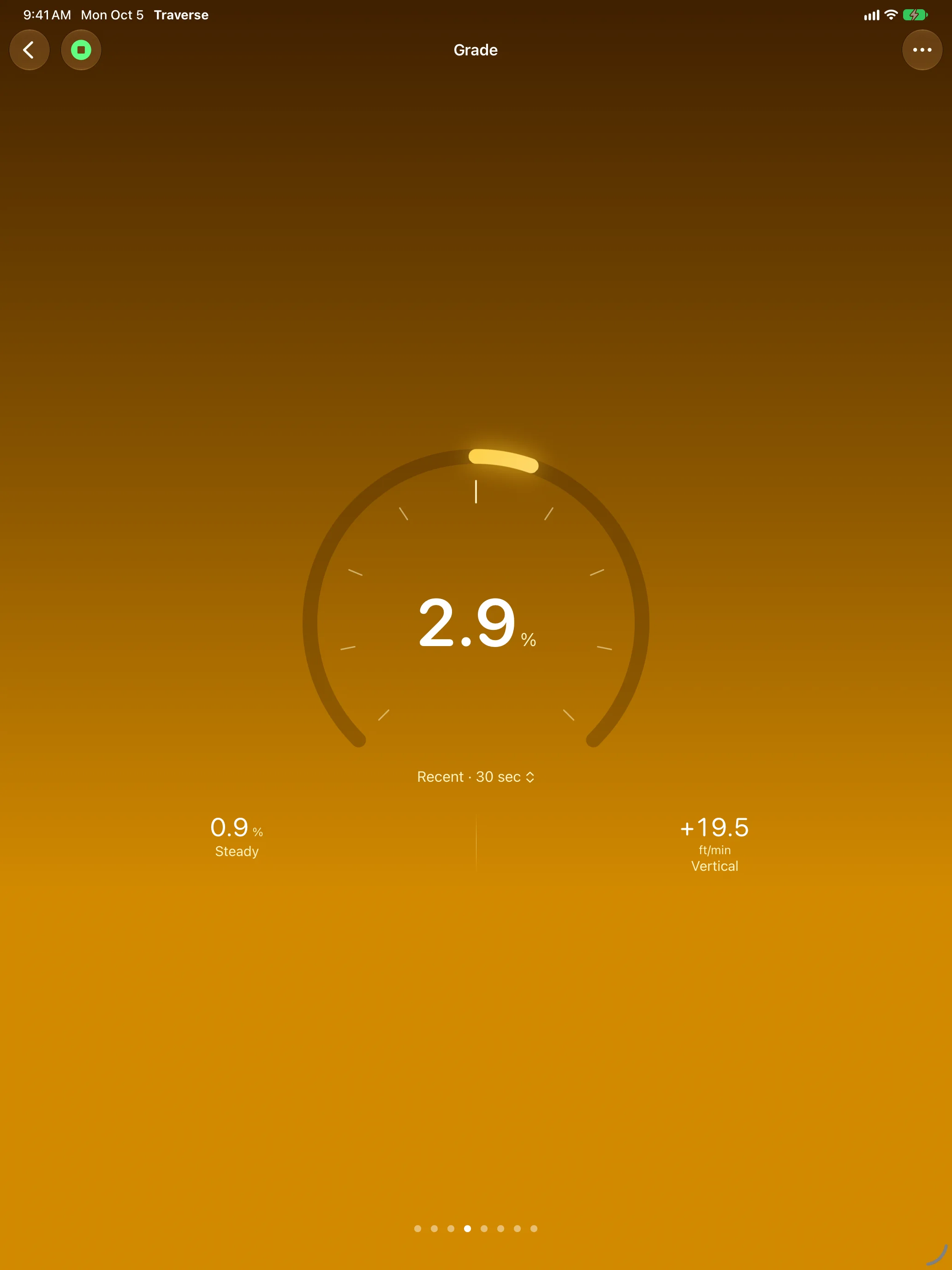
How steep it gets
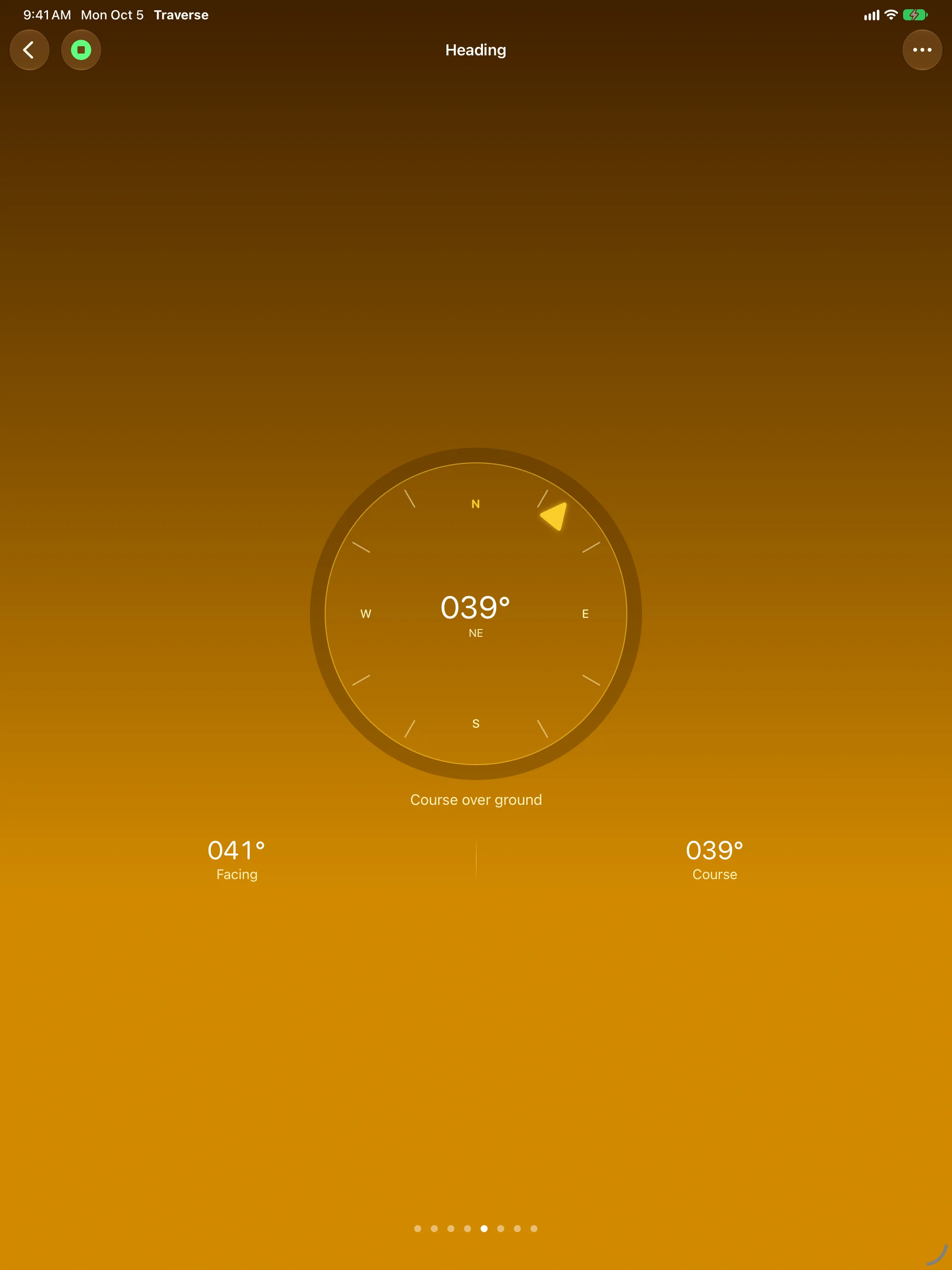
Which way you’re going
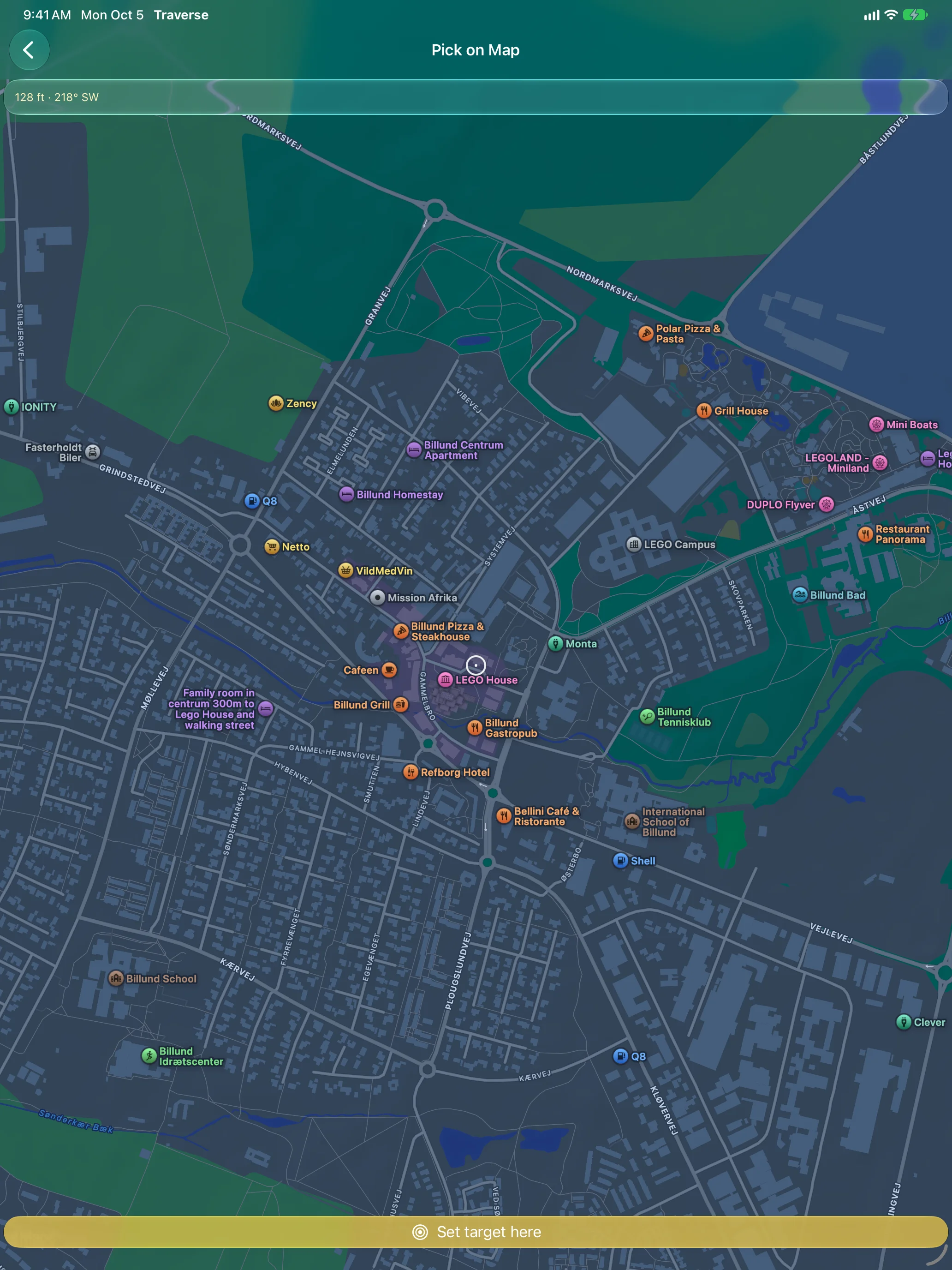
Pick any point as a target
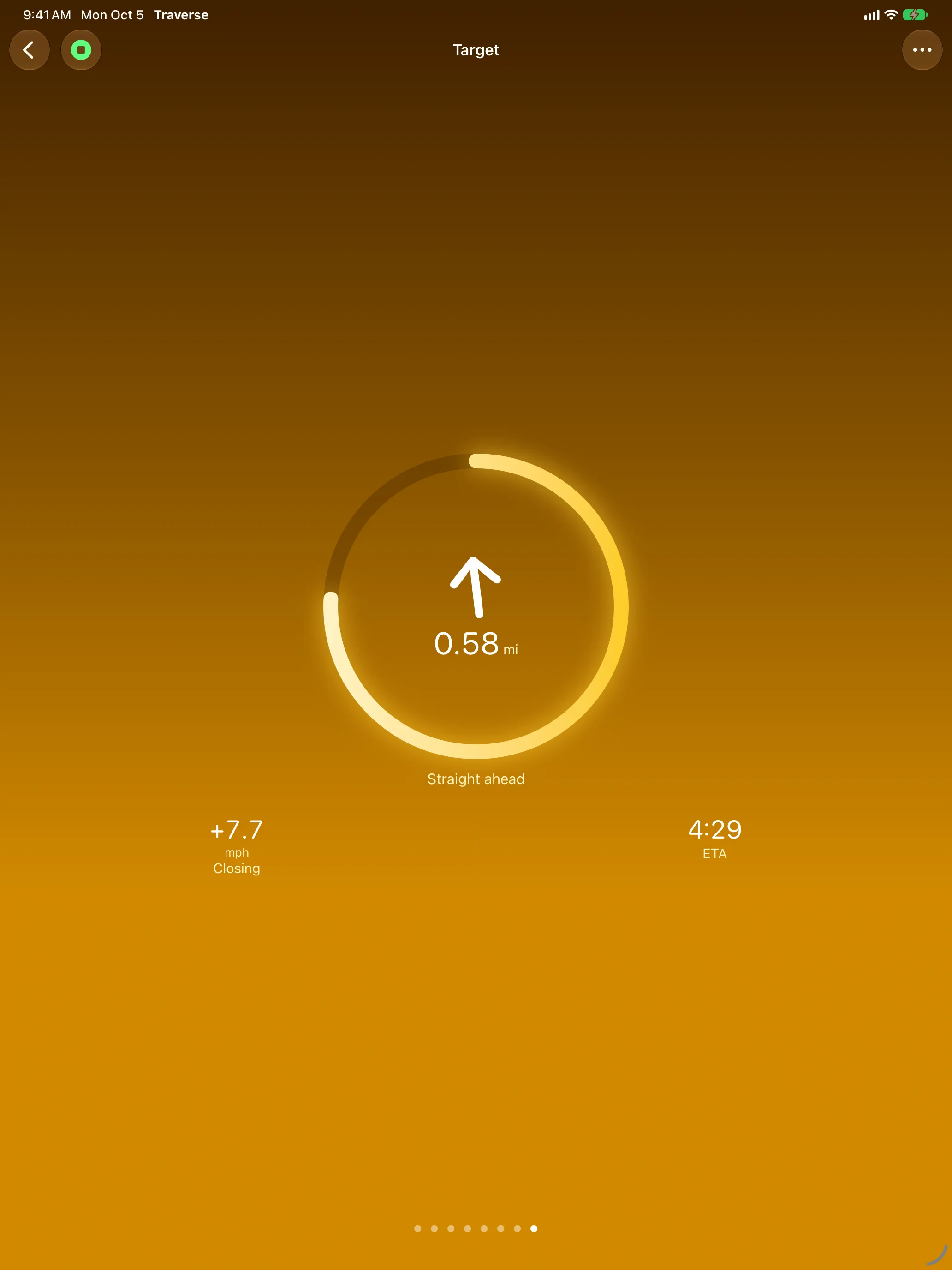
How far to go
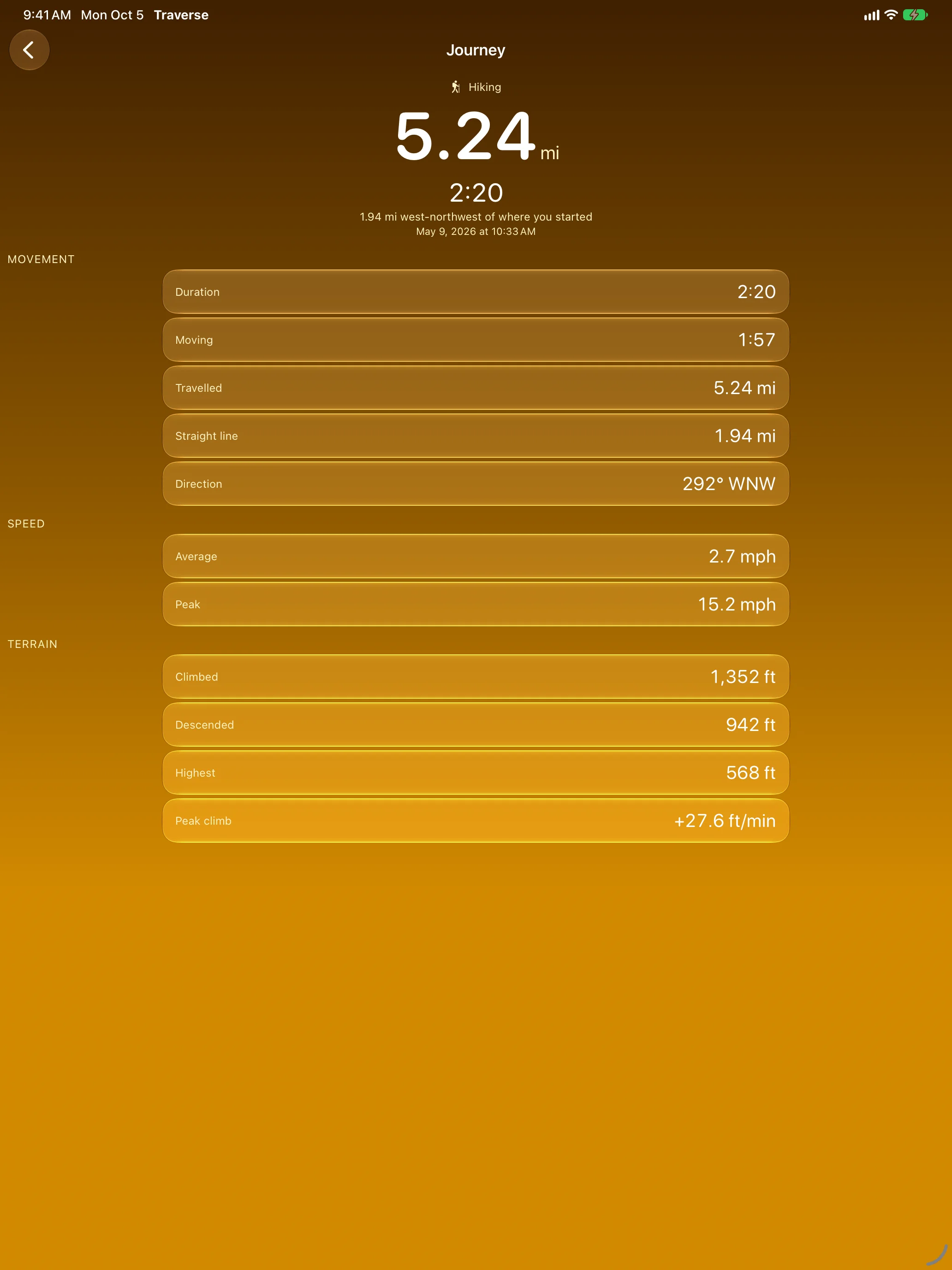
What you just did
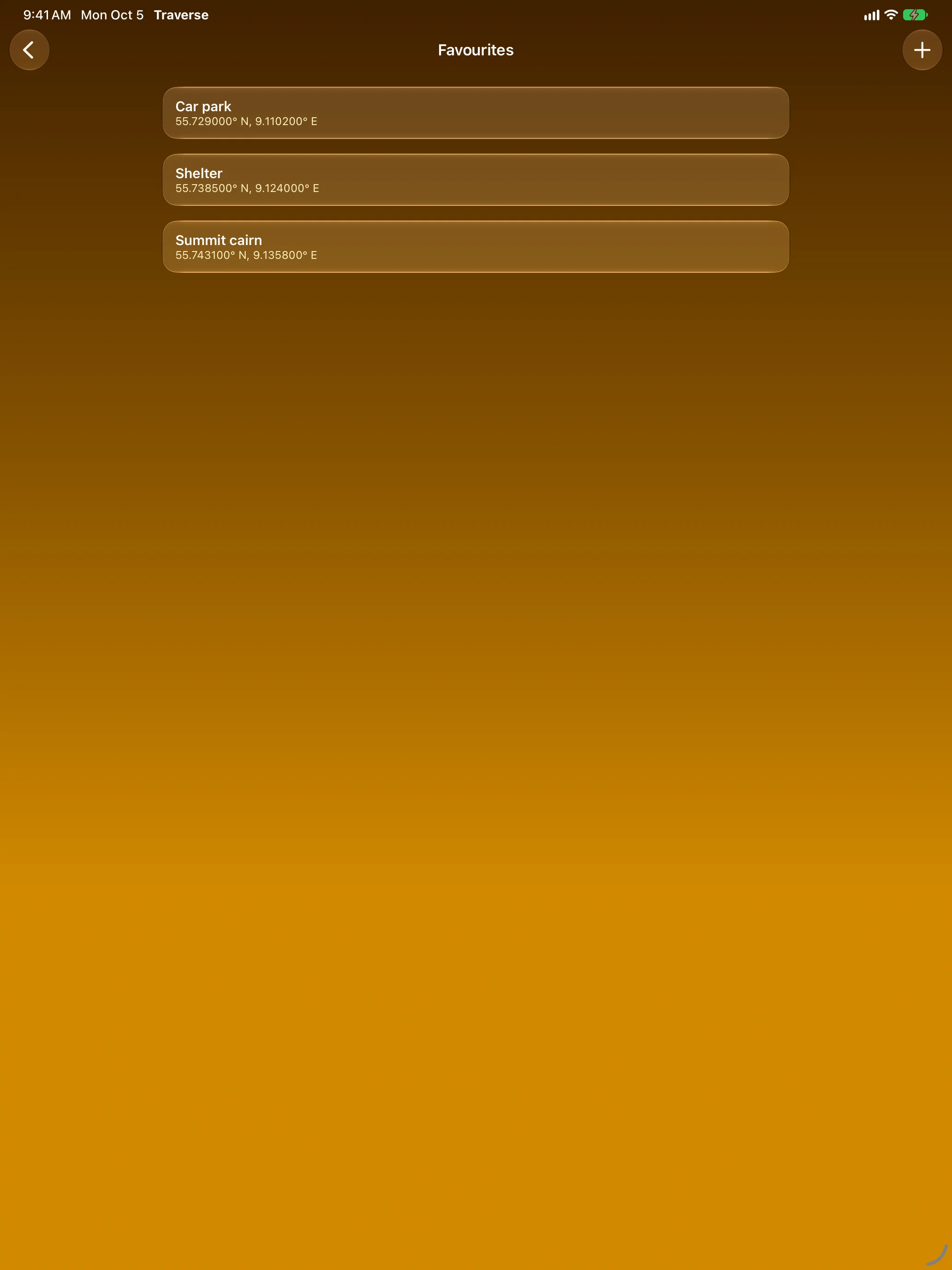
Your places, on both devices
Features
Eight Instruments
Speed, altitude, vertical speed, grade, heading, journey, position and target. One question per screen, one big value, a little context underneath. Choose an instrument, then swipe between them.
Two Kinds of Steep
Vertical speed says how fast your altitude is changing; grade says how steep the ground is. Traverse shows both, smoothed over a window you choose — with the Digital Crown on the watch, from the toolbar on iPhone.
Set a Target
A saved favourite, the spot you started from, a point picked on the map under a fixed crosshair, or typed-in coordinates. See the distance, which way to turn, how fast you’re closing in and when you’ll arrive.
Journeys With a Summary
Start a journey and Traverse adds up distance, climb, time and displacement — and keeps going when you lower your wrist or lock your phone. End it and see how far, how long, how high, and where you finished relative to where you began.
Watch and iPhone Together
Both run the full set of instruments. Favourites saved on iPhone show up on your watch; the last journey finished on your wrist shows up on your phone.
Honest Instruments
Every position shows its accuracy, every heading names its sensor, every smoothed value names its window. When the sensors can’t support a reading you get a dash, never a made-up zero.
Knots Are First-Class
Metric, imperial and nautical units, and decimal or degrees-minutes-seconds coordinates — knots and nautical miles for life on the water.
Shortcuts
Start or stop a journey and mark where you are from Shortcuts, without opening the app.
About
Traverse is part of the Dansk Rumskrot family of native, privacy-first Swift apps. It runs entirely on your devices: no account, no ads, no tracking, and your journeys never leave your watch and phone.
Join the beta
Want a say in where Traverse goes next? Join the public beta on TestFlight and try new builds before they reach the App Store.
The beta runs in Apple’s TestFlight app. Install TestFlight, then tap Join — TestFlight installs the beta build of Traverse and offers each new build as it’s ready.
Purchases in TestFlight builds are test purchases: you’re never charged, and they don’t carry over to your account or to the App Store version. Purchases in the App Store version are real — please make sure which version you’re using; we can’t take responsibility for purchases made by mistake.
Spot a bug, a rough edge or a missing feature? Take a screenshot in the beta build and TestFlight offers to send it as feedback, or use Send Beta Feedback in the TestFlight app. Every report is read and helps decide what gets built and fixed next — there’s no support desk behind it, so reports aren’t answered one by one.
To leave the beta, open Traverse in the TestFlight app and tap Stop Testing.