Watch app for Tesla
A local remote for the car in front of you
Tap a control on your iPhone or Apple Watch and the command travels directly to your vehicle over Bluetooth — no Internet, no account, no background link. Every command ends with the car’s own answer: confirmed, unconfirmed or failed.
Public Beta Open to everyone on TestFlight — the latest build, before it reaches the App Store.
- Every command you reach for. Locks, frunk and trunk, climate and seat heaters, charge port and limit, windows, Sentry, media.
- Values from the car, not guesses. Charge limit and cabin temperature show what the car reports; the door picker draws each door’s real state.
- Yours to arrange. Six favourites on the first watch page, complications, Control Center, Siri and Shortcuts; a colour per vehicle.
Use it when… you’re walking up with a bag in each hand, or the cabin needs to be warm before you step in.
iPhone
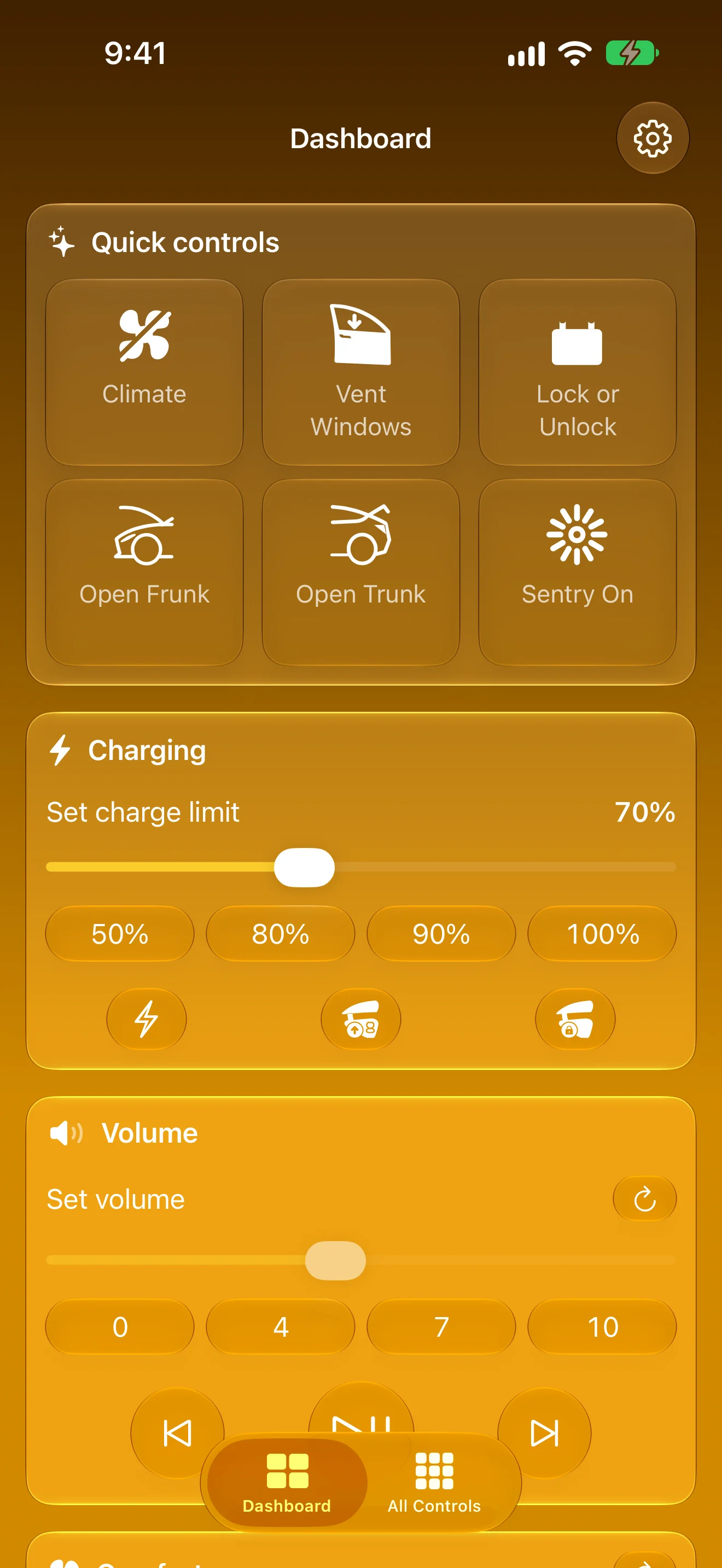
Your Car, One Tap Away
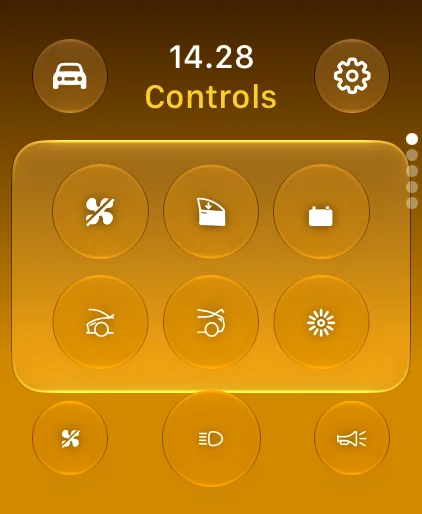
On your iPhone — and the same controls on your wrist
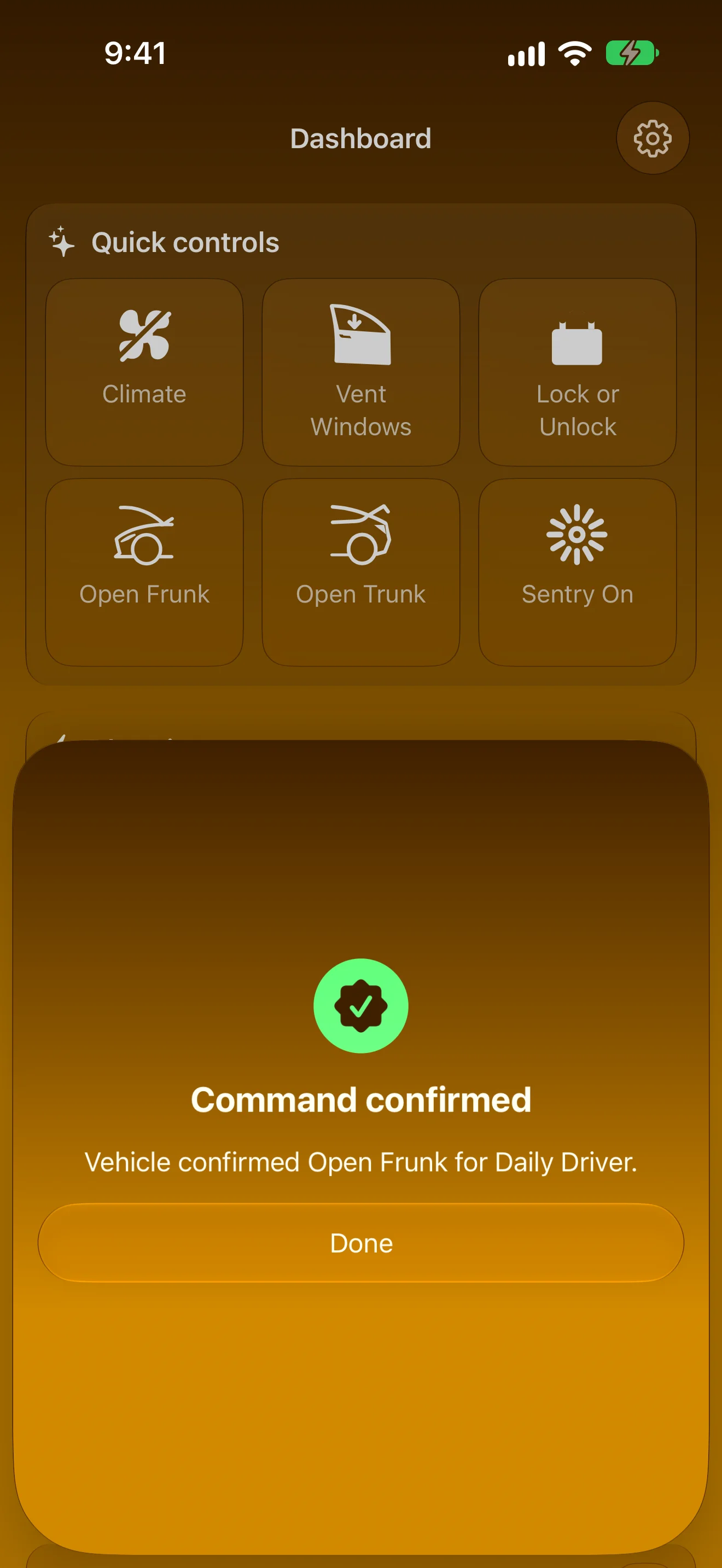
Know It Worked
Every command ends with the car’s own answer
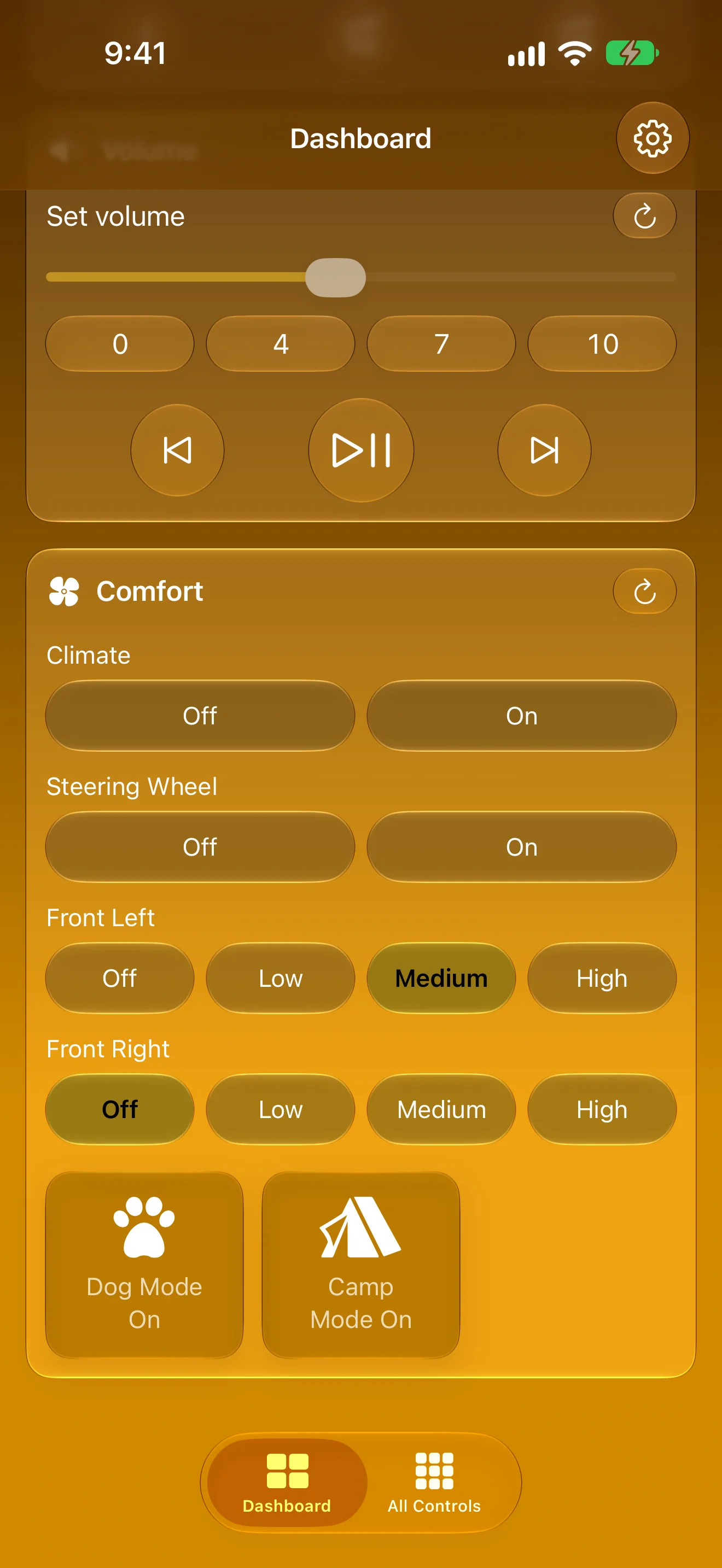
Comfort, Seat by Seat
Climate, seat heaters and the wheel together
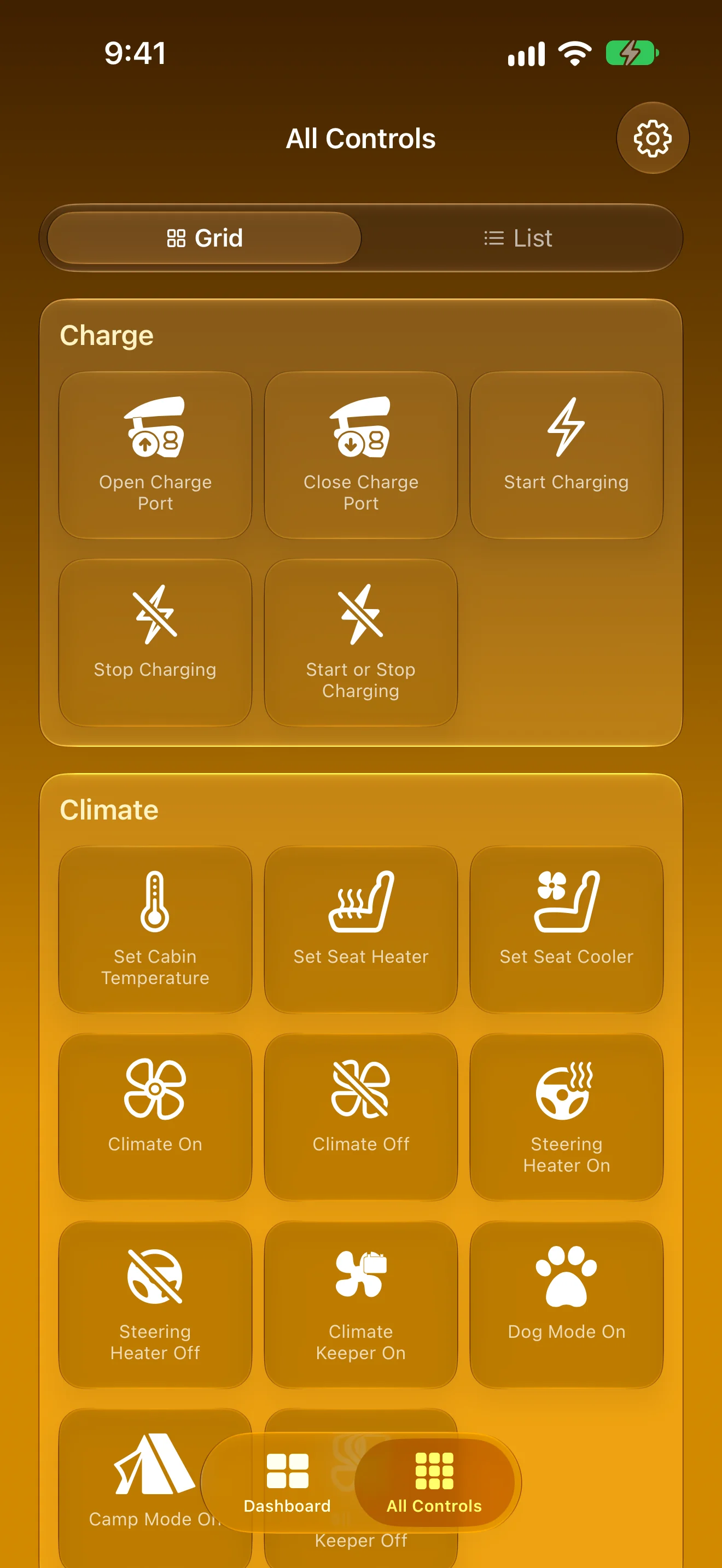
Every Command, Sorted
Charging, climate, doors, windows, lights and media
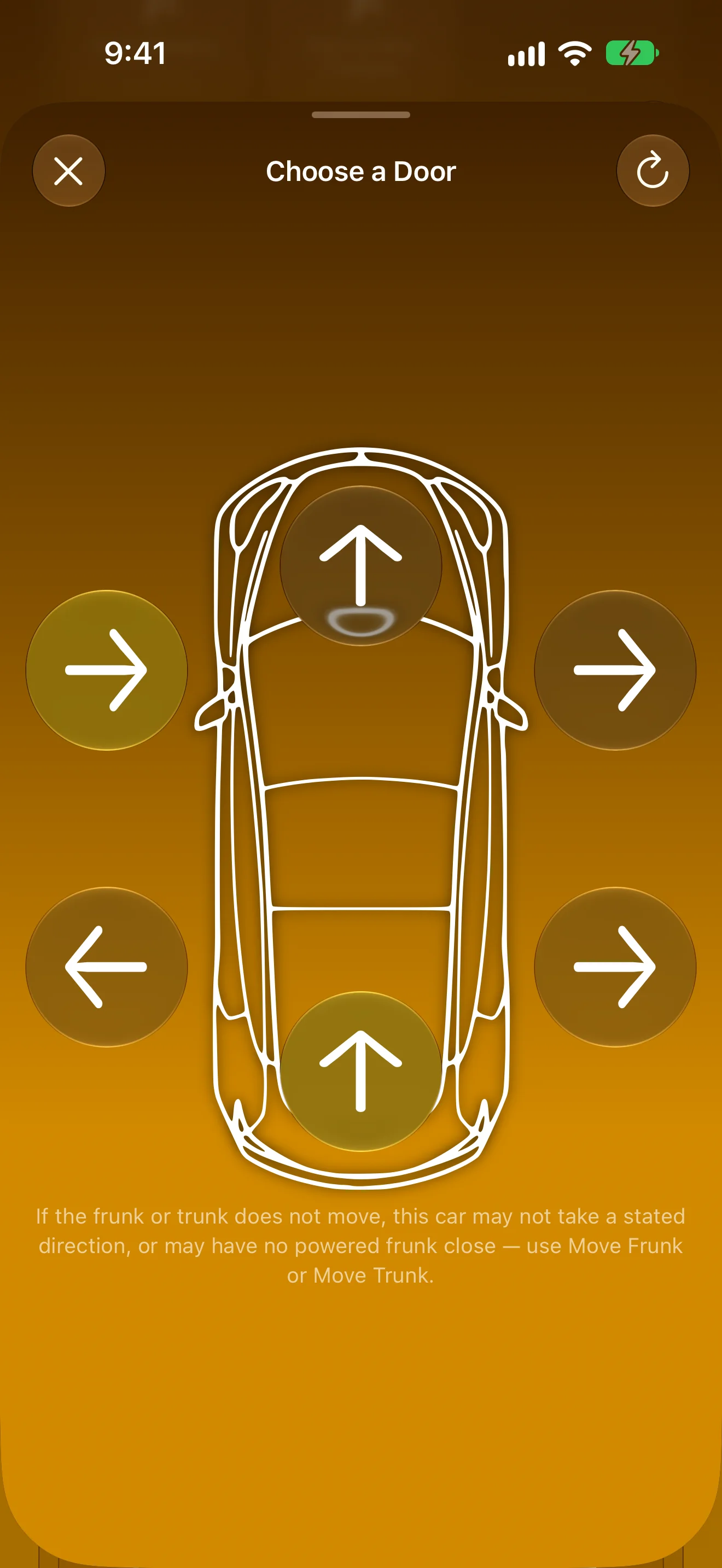
Pick the Door You Mean
Tap a door on the car to open or close it
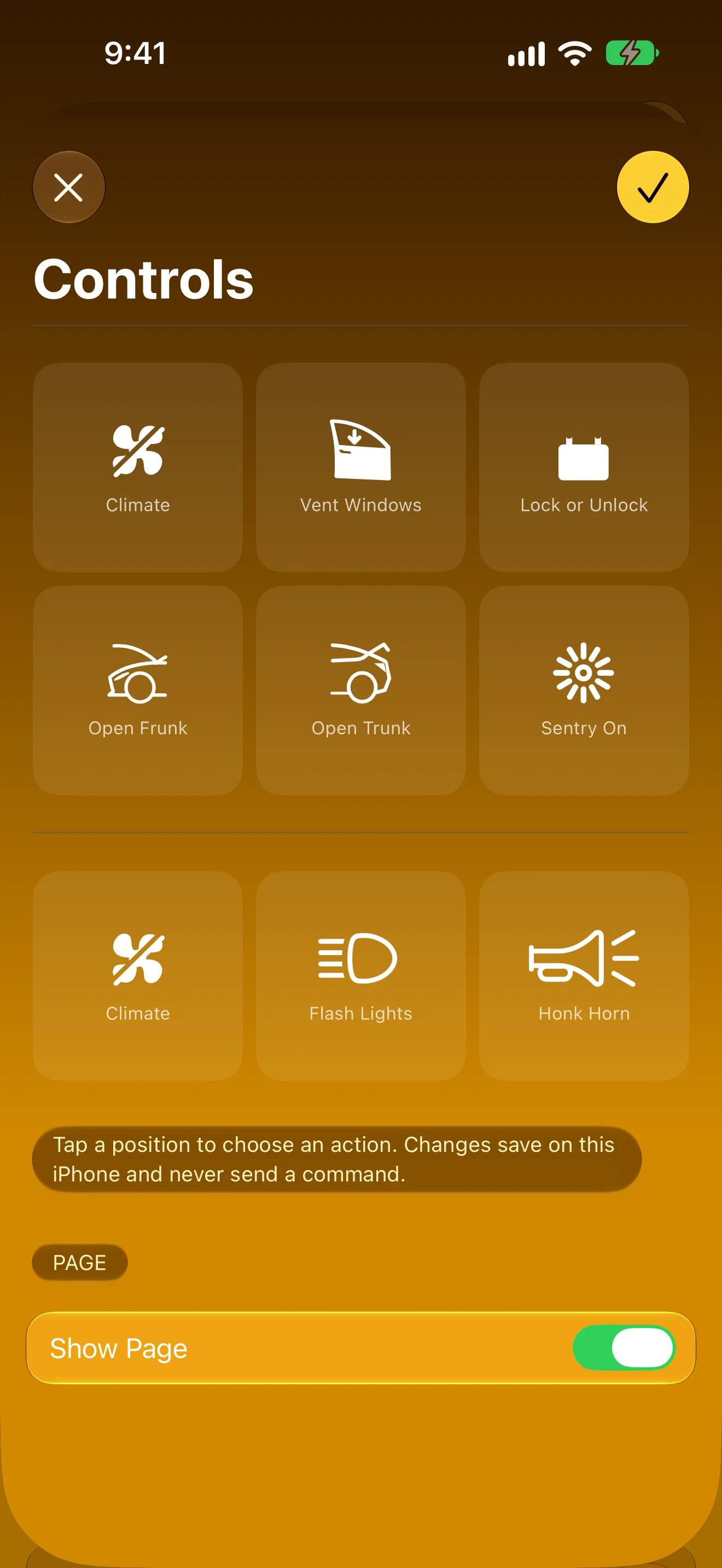
Arrange It Your Way
Choose the command behind every slot
Apple Watch
Six Controls on Your Wrist
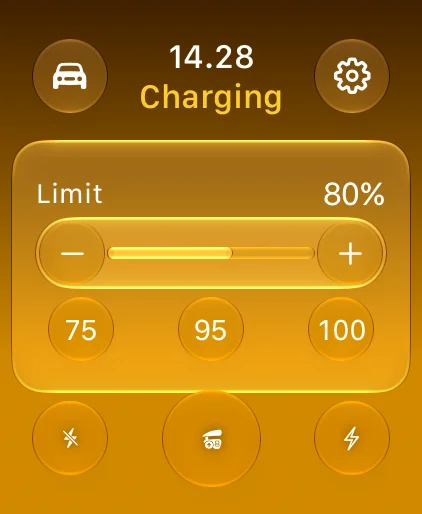
Set the Charge Limit
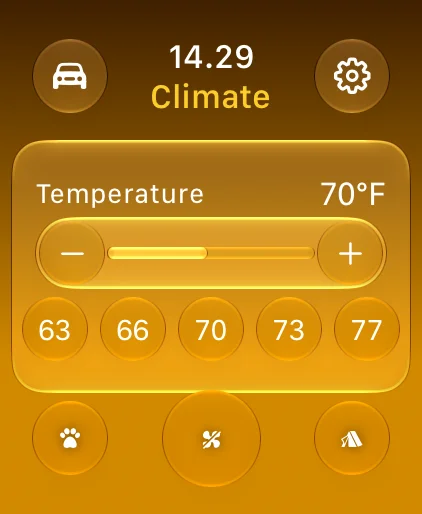
Dial In the Cabin
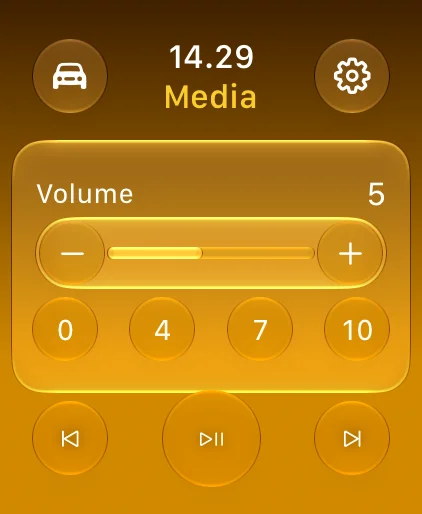
Music, No Phone Needed
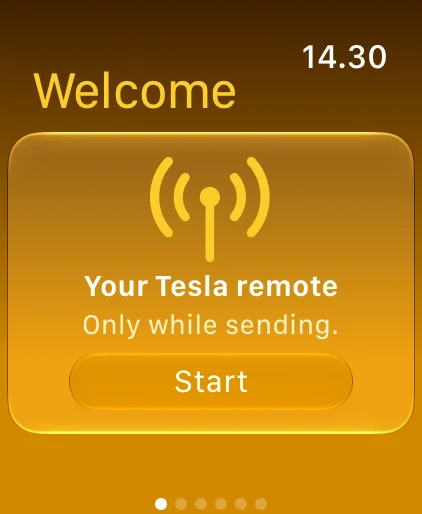
Only While Sending
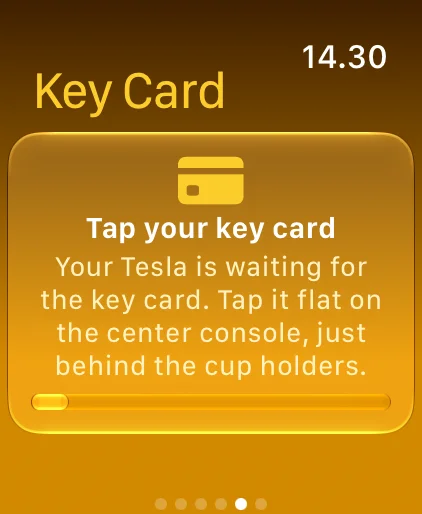
Set Up at the Car
Features
A Dashboard on iPhone
Quick controls, charging, media and cabin comfort on one screen, and every supported command in All Controls. The iPhone app holds its own key and stands on its own, with or without an Apple Watch.
The Same Controls on Your Wrist
Your six favourite controls on the first watch page, with dedicated Charging, Climate and Media pages a swipe away and Full Controls for everything else.
Every Command You Reach For
Locks, frunk and trunk, climate, seat and wheel heaters, Dog and Camp Mode, charge port, charging and charge limit, windows, sunroof, Sentry, horn, lights and media. Available controls depend on your vehicle.
Values From the Car
Charge limit, cabin temperature, seat heaters and volume show the car’s own value when you ask. Every command ends with a clear result: confirmed, not acknowledged, or failed. Arrange every slot your way and add commands to complications, Control Center, Siri and Shortcuts.
Private by Design
Commands travel directly between your device and your car over Bluetooth and work offline. No backend, no tracking, and no Bluetooth connection when you are not sending a command.
Set Up at the Car
Scan or type your VIN, approve the new key with your key card, and send one test command. Your iPhone and Apple Watch each hold their own key, and private keys never leave the device.
About
Watch for Tesla works within Bluetooth range of your car. It is not a remote-access app, a passive or drive key, or an emergency way into the vehicle — keep your key card and the official app for those. It supports Model 3 and Model Y (all years), Model S and Model X from the 2021 refresh, and Cybertruck.
Watch app for Tesla is an independent app from Dansk Rumskrot and is not affiliated with, endorsed by, or sponsored by Tesla, Inc. Tesla and its model names are trademarks of Tesla, Inc.
Join the beta
Want a say in where Watch app for Tesla goes next? Join the public beta on TestFlight and try new builds before they reach the App Store.
The beta runs in Apple’s TestFlight app. Install TestFlight, then tap Join — TestFlight installs the beta build of Watch app for Tesla and offers each new build as it’s ready.
Purchases in TestFlight builds are test purchases: you’re never charged, and they don’t carry over to your account or to the App Store version. Purchases in the App Store version are real — please make sure which version you’re using; we can’t take responsibility for purchases made by mistake.
Spot a bug, a rough edge or a missing feature? Take a screenshot in the beta build and TestFlight offers to send it as feedback, or use Send Beta Feedback in the TestFlight app. Every report is read and helps decide what gets built and fixed next — there’s no support desk behind it, so reports aren’t answered one by one.
To leave the beta, open Watch app for Tesla in the TestFlight app and tap Stop Testing.